![imagotype-new-chekin-landscape-2-1.png]](https://support.chekin.com/hs-fs/hubfs/imagotype-new-chekin-landscape-2-1.png?width=100&height=40&name=imagotype-new-chekin-landscape-2-1.png)
Which channels the guest receives your messages through
Chekin sends the lead guest the links for the online check-in and the other processes of your property. The channels are chosen for each property, in Properties > your property > Communications, Active channels section.
| Channel | Price | How to turn it on |
|---|---|---|
| Free (“Free channel”) | Always on (“DEFAULT”). There is no checkbox to turn it off | |
| WhatsApp BETA | Pay-as-you-go (“Pay-as-you-go channel”) | You tick its checkbox, property by property |
| SMS BETA | Pay-as-you-go (“Pay-as-you-go channel”) | You tick its checkbox, property by property |
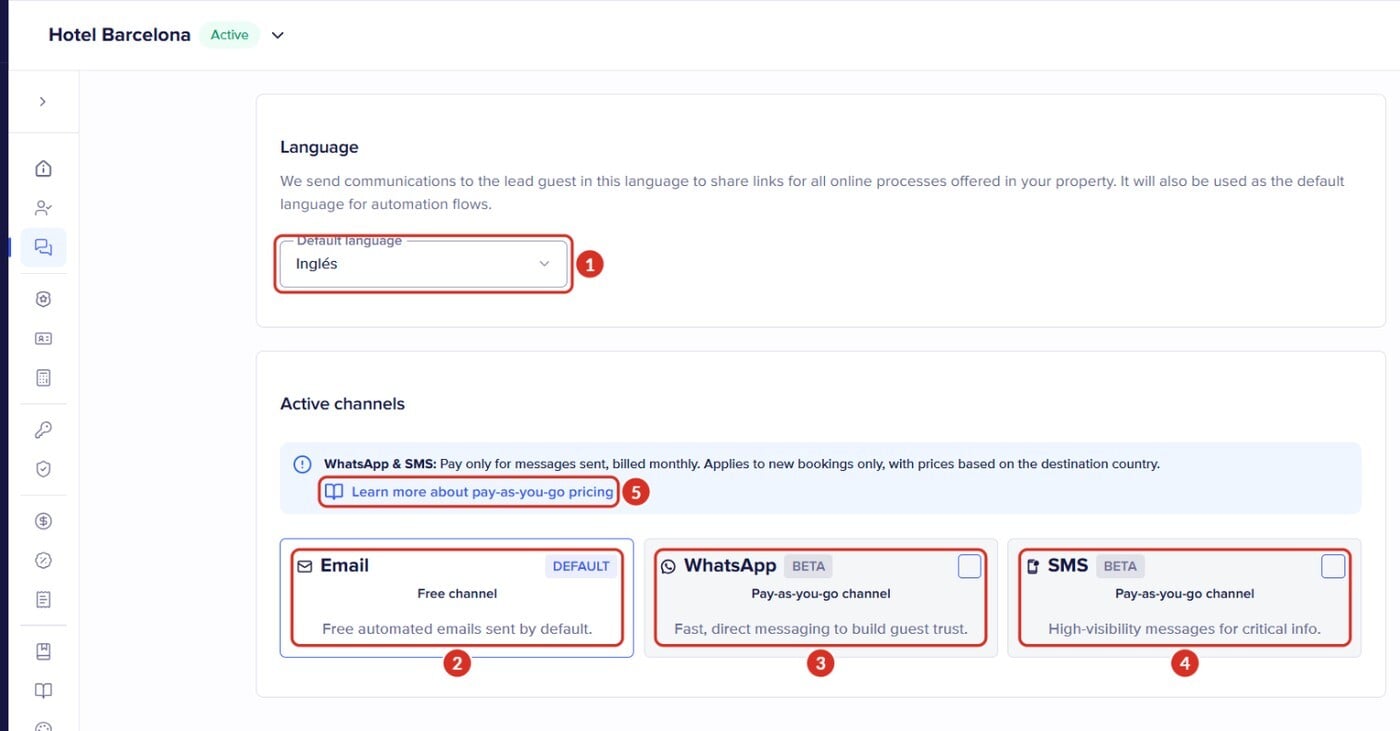
- 1Default language: the language in which this property's messages are sent.
- 2Email: “DEFAULT”, “Free channel”. Always on.
- 3WhatsApp and 4SMS: “BETA”, “Pay-as-you-go channel”. Each one has its own checkbox to turn it on.
- 5The link to WhatsApp and SMS pricing: “Learn more about pay-as-you-go pricing”.
When the check-in link is sent, and what to do if it doesn't arrive, is explained in How do I send and customize the Online Check-in link for my guests? If the guest gets the link but it doesn't work, see what to do if the check-in link doesn't work.
Which language the guest receives messages in
- Go to Properties and open the property.
- Go to Communications.
- Choose the Default language 1 and save the changes. If you have several properties, repeat this for each one.
As the dashboard explains, the links for your property's online processes are sent to the lead guest in that language, and it is also the starting language for your automation flows.
This is how Chekin decides which message each guest receives:
- If you have created a template in the booking's language, they receive your template.
- If you don't have a template in that language, they receive Chekin's message in that language.
- A template with a specific language is only sent to bookings in that language. To have it reach all bookings, choose All languages.
- If the language is not found, the message is sent in English.
When you send the link manually from a booking, you choose the language of the email and of the registration.
Change the text of the messages
Chekin's message cannot be edited. To use your own text, create a template: in its language, it replaces Chekin's message.
Dashboard shown in Spanish. The numbers match the steps below.
Dashboard shown in Spanish. The numbers match the steps below.
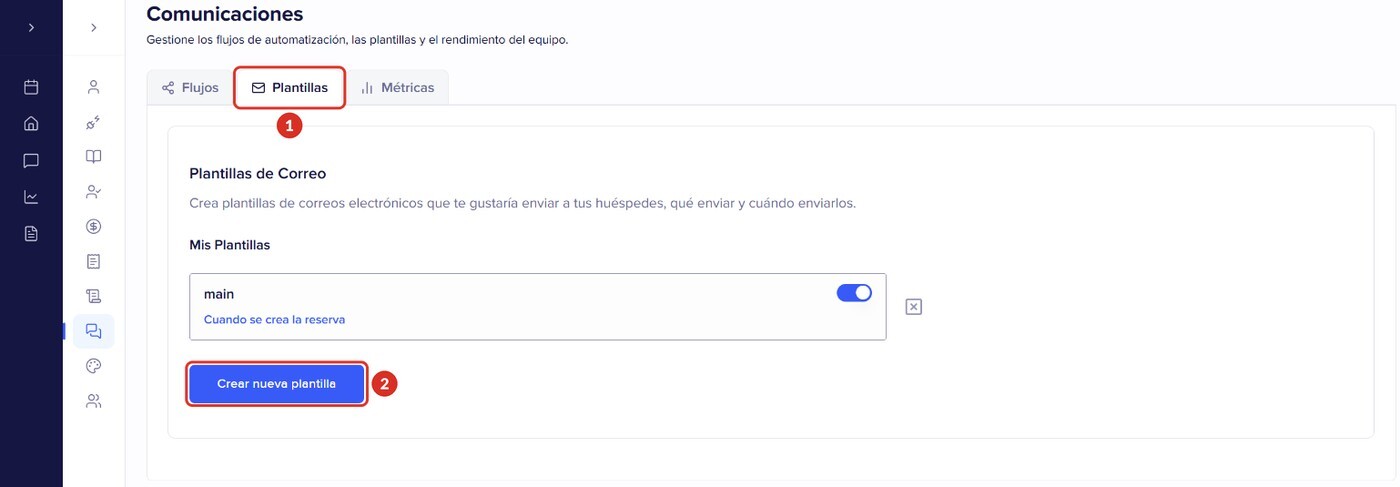
- Go to Settings > Communications and open the Templates tab 1 (open in the dashboard). In Email Templates you will see My Templates: each template with its switch (on means it is sent) and the sending time, for example “When reservation is created”.
- Click Create New Template 2.
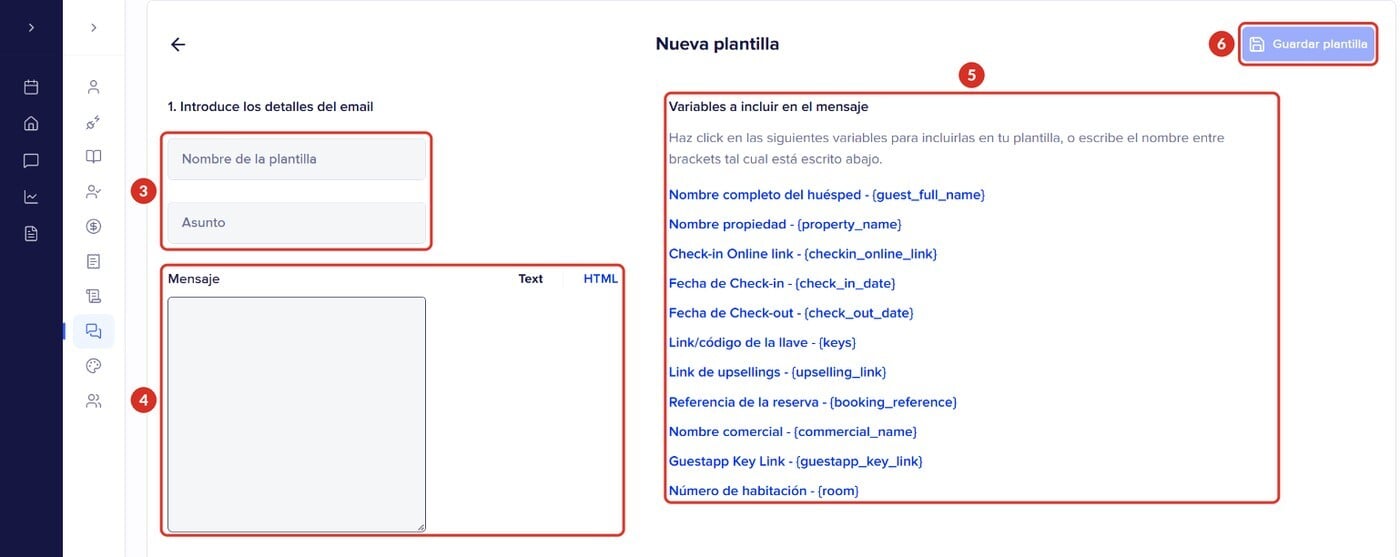
- New Template opens. In 1. Enter email details, give it a Name of the template (only you see it) and write the Subject 3.
- Write the Message 4, as text (Text) or in HTML. To add booking data, click a variable in Variables to include on your message 5 or type it between curly brackets.
- Further down, in 2. Select Timing (“When would you like to send this email template to guests?”), choose when it is sent: for example When reservation is created, All guests have been registered, One week before check-in, 72, 48 or 24 hours before check-in, On check-in or On check-out.
- Choose the language (or All languages) and the properties.
- Click Save Template 6, at the top right.
There are variables for the guest's name, the property name, the check-in link, the check-in and check-out dates, the key, the upselling link, the booking reference, the commercial name and the room number. Two that are used a lot:
- {checkin_online_link}: the booking's check-in link. If your template is meant to ask for the registration and does not include it, the guest does not receive the link.
- {guest_full_name}: the guest's first name and surname. There is no variable with the first name only.
Automation flows
In the Flows tab you can create more complete automations: when it is sent, which conditions must be met (for example, the Booking language), what is sent and through which channel. Some actions are only available if you have the Inbox. If you already have a template, the Export to Flow button creates a flow that sends the same message at the same time and turns off the template, so that the guest does not receive it twice.
Sender and custom domain
Emails to your guests are sent from the address no-reply@chekin.com. If you send the link through Booking.com messaging, add that address and Chekin's domains to your safe list: we explain how in How to create a white list on Booking.com.
With that address, the sender the guest sees is Chekin. The sender name and address only change if you set up your own email domain (we explain this just below).
There are two different things you may want to do with your domain:
| What you want | Example | How to do it |
|---|---|---|
| Links that use your domain | checkin.yourdomain.com | In Branding, inside a template, in the domain section. Branding is a paid feature. Steps in Custom Domains (White Label / Branding) |
| Emails sent from your address | bookings@yourdomain.com | It is set up in the Inbox settings. Write to us and we will tell you whether you can use it on your account and which steps to follow: you will need to add some records to your domain's DNS settings and, until they are verified, emails will still be sent from Chekin's address. |
WhatsApp and SMS: turning them on and how much they cost
Turn them on
- Go to Properties, open the property and go to Communications.
- In Active channels, tick the checkbox for WhatsApp 3, SMS 4 or both (in the first image).
- Save the changes.
- Repeat this in each property where you want it.
It only applies to new bookings, not to bookings that already existed. For it to work, the booking must have the guest's phone number. Both channels are in Beta.
If you use the Inbox, connecting WhatsApp Business with your Meta account is explained in How to connect WhatsApp Business with Meta account. If you have questions about what you need to send WhatsApp messages to your guests, write to us.
How much they cost
This is explained in the Pay-as-you-go Pricing window, which opens with the “Learn more about pay-as-you-go pricing” link in Active channels 5 (in the first image). It says:
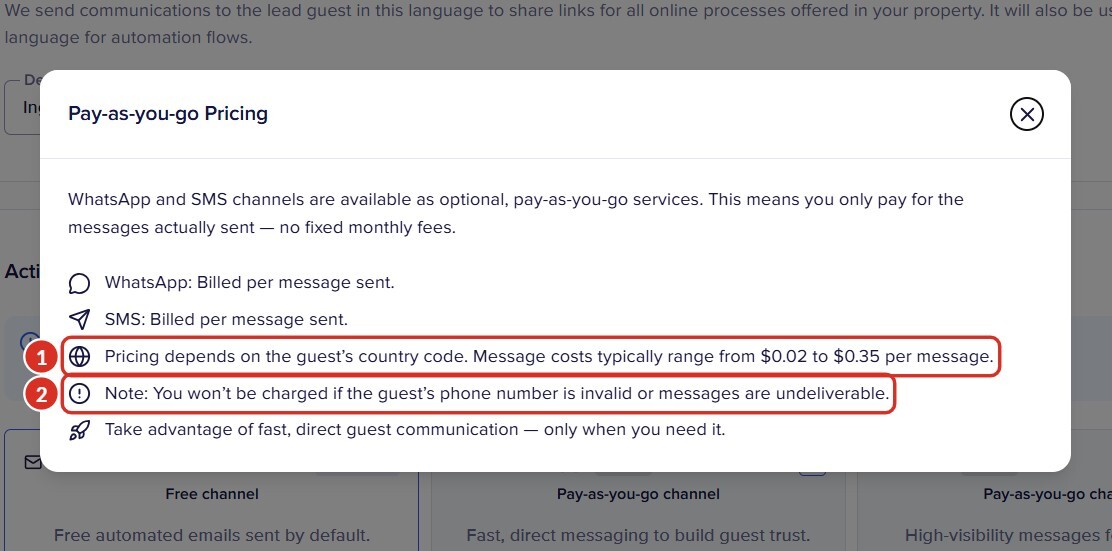
- “WhatsApp and SMS channels are available as optional, pay-as-you-go services. This means you only pay for the messages actually sent: no fixed monthly fees.” They are charged separately from your subscription.
- “WhatsApp: Billed per message sent.” and “SMS: Billed per message sent.”
- “Pricing depends on the guest's country code. Message costs typically range from $0.02 to $0.35 per message.” 1
- “Note: You won't be charged if the guest's phone number is invalid or messages are undeliverable.” 2
- If your account uses the Wallet, what you spend appears in Settings > Billing > Overview, under Service Usage. More information in Chekin Wallet: how it works, earnings and withdrawals.
If you have questions about how these messages are charged to you, write to us.
Turn them off
In Properties > your property > Communications > Active channels, untick WhatsApp or SMS and save the changes. Do this in each property where you have it turned on.
Common problems
| What happens | Why | Solution |
|---|---|---|
| The guest received the message in another language | The booking's language or the property's Default language was used | Check the Default language or create a template in that language |
| My template is not sent and Chekin's message arrives instead | The booking's language does not match the template's language | Choose All languages or create one template per language |
| I can't edit Chekin's message | Chekin's message is fixed | Create a template with your own text |
| The guest doesn't receive the link with my template | The link variable is missing | Add {checkin_online_link} to the text |
| I can't see Communications in Settings | Your role is Collaborator | Ask the Owner or a manager |
| I see SMS or WhatsApp charges | The channel is turned on in some property | Check Active channels in each property and what you have spent in Service Usage |
| I set up my domain and emails are still sent from Chekin | The Branding domain only changes the links | Write to us to use your domain as the sender |
| Booking.com removes the link from the message | Booking.com blocks addresses and links that are not on your safe list | Add no-reply@chekin.com and Chekin's domains to your safe list |
Still have questions? Write to us from the dashboard chat or at support@chekin.com, including the property.