![imagotype-new-chekin-landscape-2-1.png]](https://support.chekin.com/hs-fs/hubfs/imagotype-new-chekin-landscape-2-1.png?width=100&height=40&name=imagotype-new-chekin-landscape-2-1.png)
This article is for when the check-in link reaches your guest, but when they open it they don't see the form: it asks them to create an account, tells them it can't find their booking, or shows an error.
The link asks to create an account
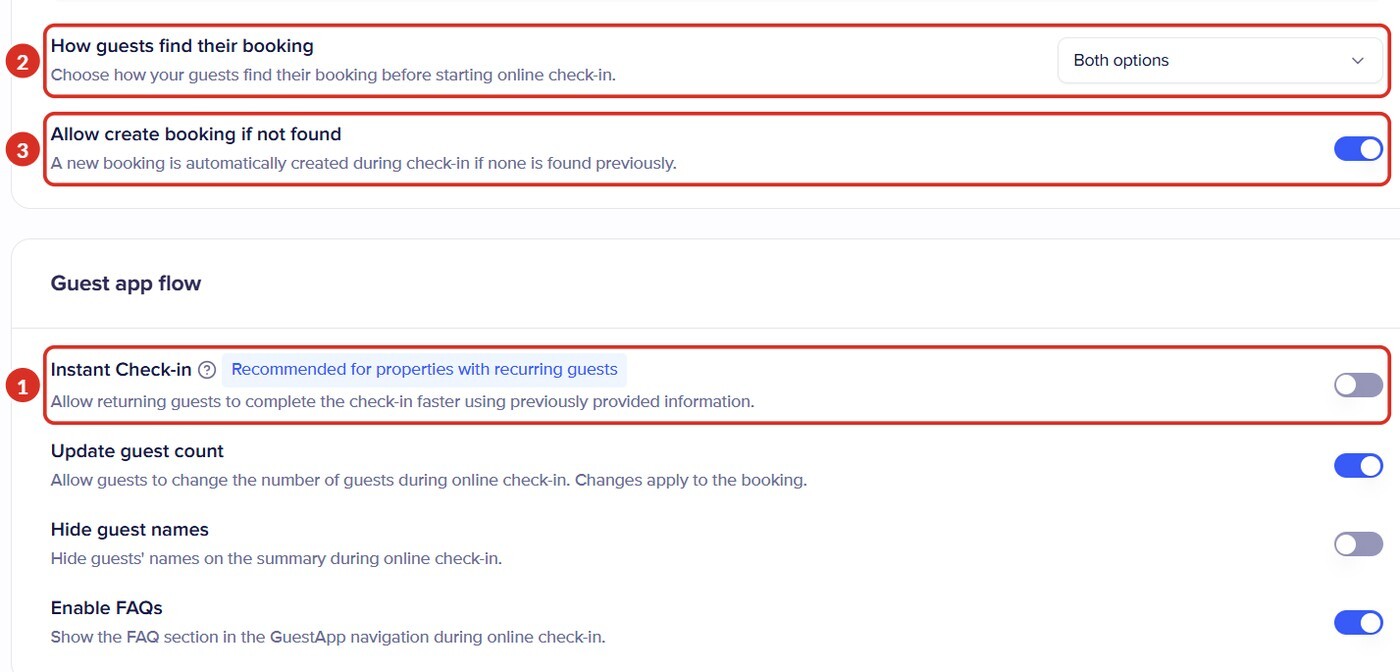
This screen comes from the property's Instant Check-in. The dashboard describes it like this: “Allows returning guests to complete check-in faster using previously provided information.” If the guest creates an account, on their next stay they reuse the details they already gave. With Instant Check-in turned on, check-in links can end in /auth/create-account, for example the one your PMS inserts in its messages. With that link, the first thing the guest sees is Create an account. It is not a broken link.
With Instant Check-in turned on, the check-in home screen also shows Log in at the bottom left. The guest does not have to use it: they can tap Guest Registration and continue with the registration, which starts with “Who are you going to register?”.
On the Create an account screen, the guest sees “Sign up to reuse your personal details and speed up your check-in”, the Email field with the Continue button, “Already have an account? Log in” and, after an “or”, Continue with Google and Continue without logging in. At the bottom there are links to “Terms of use” and “Privacy Policy”.
The guest does not need to create an account: they just tap Continue without logging in and get to the usual form.
If you prefer your guests to go straight to the form, turn it off in each property:
- Go to Properties, open the property and go to Online Check-in.
- Scroll down to Guest app flow.
- Turn off the Instant Check-in switch 1, the one with the label “Recommended for properties with returning guests”, and click Save changes.
- Repeat the steps in each property where you want to remove it.
“Find your Booking” and “booking not found”
There are two main check-in links, and each one leads to a different screen:
| Link | Where you copy it | What the guest sees |
|---|---|---|
| Booking link | Bookings > the booking > Online Check-in block > Copy link | Their check-in directly, without searching for anything |
| Property link | Properties > the property > Online Check-in, next to the QR code | First the Find your Booking screen: they have to search for their booking before registering |
With the property link, the guest sees “Welcome to” and the name of your property, the title Find your Booking and the search methods you have turned on (for example, Booking reference or Check-in Date & Email). They enter their details and tap Continue.
How that search works is decided on the same property Online Check-in screen you saw in the previous section (marks 2 and 3 in that image):
- 2How guests find their booking: in the drop-down you choose which details the property link search asks for: the booking reference, the check-in date and email, or Both options.
- 3Allow creating a booking if not found: if it is turned on and the booking is not found, a new one is created automatically during the check-in and the guest can register. If it is turned off, they cannot continue if their details do not match.
In Settings > Online Check-in there is also a check-in link for your whole account, with its own QR code: it works for all your properties and also opens a booking search. The search methods for that link are chosen in Available methods, and you can turn on one or more:
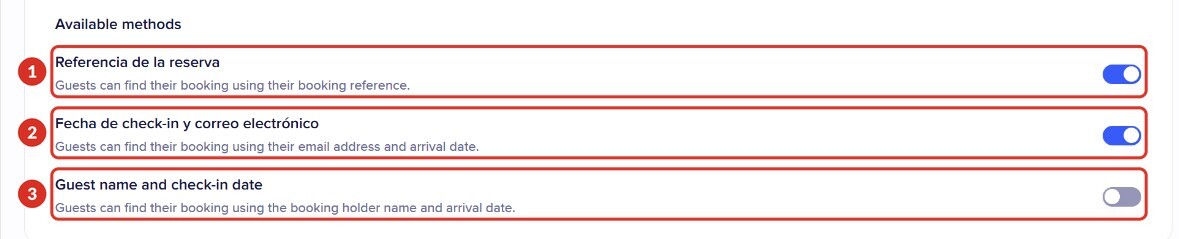
Dashboard shown in Spanish. The numbers match the list below.
- 1Booking reference: the guest enters their booking's reference code.
- 2Check-in date and email: the arrival date and the email of the booking.
- 3Guest name and check-in date: the name of the booking holder and the arrival date.
If the guest is told that the booking was not found, it is usually for one of these reasons:
- What they enter does not match the booking: a reference in a different format (some PMSs store it without letters or prefixes), a different email or a different date.
- The booking is not in Chekin yet: the iCal or your PMS has not synced it yet. If you use iCal, see what to do if an iCal booking doesn't appear.
The quickest solution is to send them the link to their booking, which does not need a search.
“Link not valid” or the page won't load
- Link not valid: the link is missing characters or is from an older version. Copy it again in Chekin (in the booking or in the property) and also change it in your automatic messages and saved templates. Current property links end in “-housing”.
- The route token is incorrect: the guest has opened an old link. Copy the current link and replace it wherever you have it saved.
- Blank page or page that won't load: always copy the link with Copy link, not from the browser's address bar. Ask the guest to try another browser.
- Your PMS inserts the link: compare the link the guest receives with the one you copy in Chekin. If they are different, send us both.
- It fails for all bookings at once: write to us, it may be a general incident.
How to test the link yourself
Before you send links to your guests, or if a guest tells you it doesn't work, run a test:
- Go to Bookings > New booking, create a test booking in your property with your own details and a future check-in date, and click Save booking.
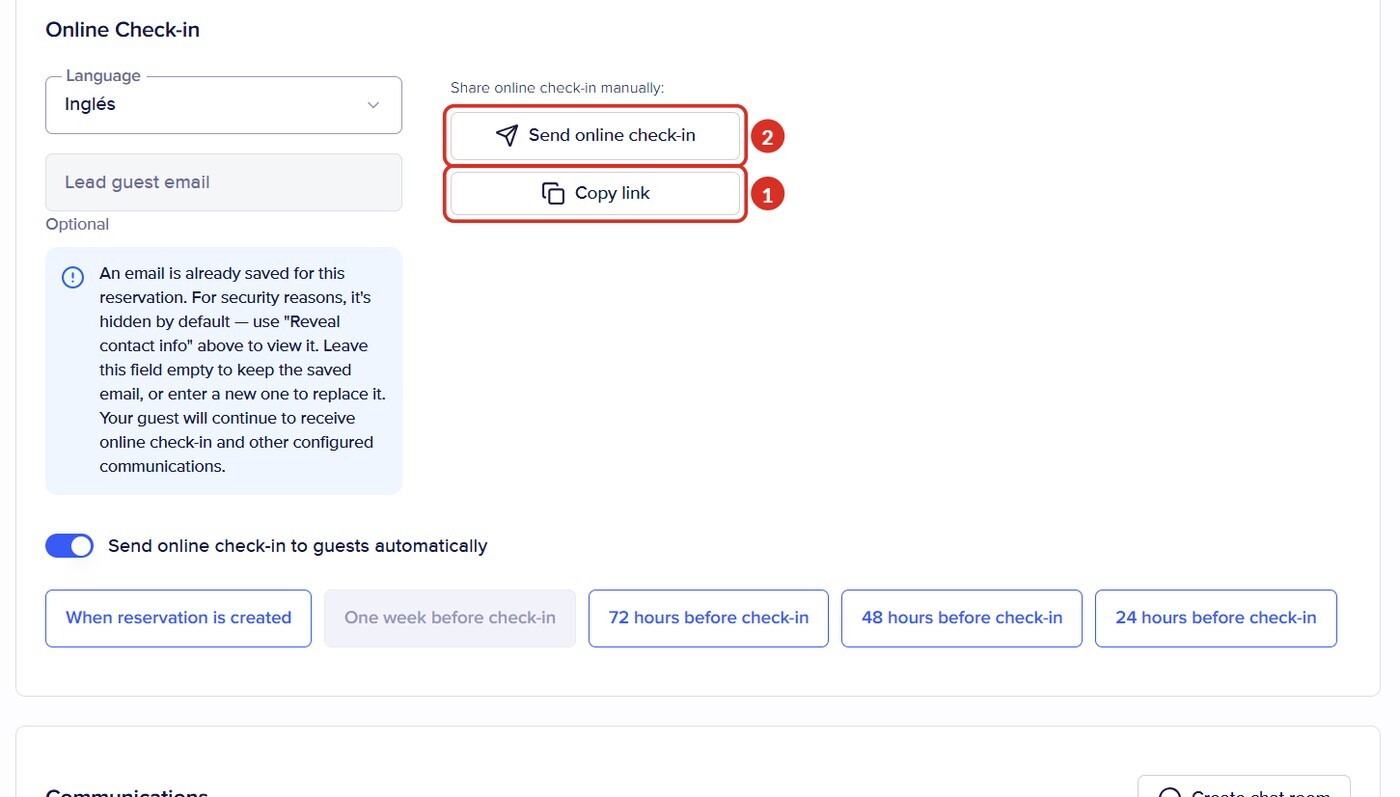
- Open the booking and, in the Online Check-in block, click Copy link 1. You don't need to send yourself the email with Send online check-in 2.
- Paste the link in a private browser window or on your phone, without the dashboard session open.
- Go through the steps as a guest would.
- When you finish, delete the test booking with Delete booking (how to edit or delete a booking).
If it works properly, the link opens the guest app with the Check-in card, the Guest Registration task as Incomplete and the Share button to pass the link to the rest of the group. If you have Update number of guests turned on in the property, they will first see the Number of guests window to confirm how many they are.
To test the property link, copy it in the property, next to the QR code, and open it the same way.
Common errors
| What happens | Why | Solution |
|---|---|---|
| The guest is asked to create an account | The property has Instant Check-in turned on | They can tap Continue without logging in, or you can turn off Instant Check-in in the property |
| The guest is asked to search for their booking | They opened the property link | Send them the link to their booking |
| The guest is told the booking doesn't exist | Their details don't match, or the booking is not in Chekin yet | Send them the link to their booking or turn on Allow creating a booking if not found |
| Link not valid or The route token is incorrect | Incomplete link or link from an older version | Copy the link again in Chekin and change it in your saved messages |
| The page stays blank | Link copied from the browser's address bar, or a different link inserted by the PMS | Use Copy link; if it comes from the PMS, send us both links |
| Booking.com removes the link from my messages | Booking.com blocks links that are not on its safe list | Add Chekin to the safe list (How to create a white list on Booking.com) |
If none of this fits, write to us from the dashboard chat or at support@chekin.com with the property, the booking reference, the link the guest received and a screenshot of what they see.