![imagotype-new-chekin-landscape-2-1.png]](https://support.chekin.com/hs-fs/hubfs/imagotype-new-chekin-landscape-2-1.png?width=100&height=40&name=imagotype-new-chekin-landscape-2-1.png)
Who can see the invoices
Only the account Owner can see the Billing section. If your role is Manager or Collaborator, ask the Owner for the invoices. Your role is shown in Settings > Account details, under Type of account.
Download your invoices
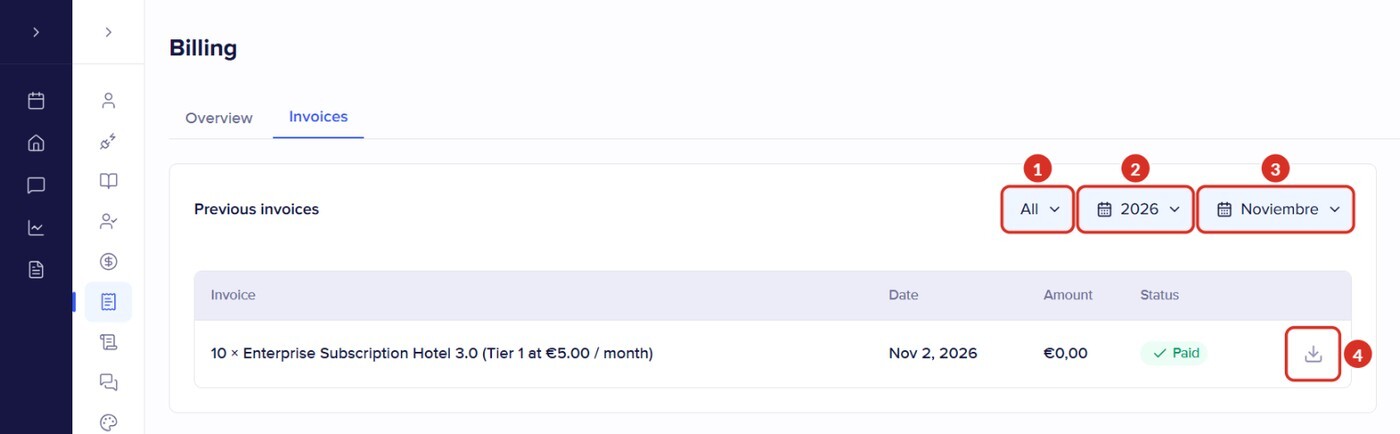
- Go to Settings > Billing and open the Invoices tab (open in the dashboard).
- In Previous invoices, leave the type set to All 1 and choose the year 2 and the month 3 of the invoice.
- In the invoice row, click the download icon (the down arrow, to the right of the Status) 4.
In the type filter, Invoices shows only invoices and Withdrawals shows the transfers you have requested from your Wallet.
What each status means
| Status | What it means | What you need to do |
|---|---|---|
| Paid | The invoice has been paid | Nothing. You can download it now |
| Pending Completed | These only appear under Withdrawals in your Wallet: Pending means we are processing the withdrawal and Completed means it has already been transferred. An invoice never shows as Pending: if it has not been paid, it shows as Unpaid | Nothing. If a withdrawal stays Pending for several days, write to us |
| Unpaid Failed | The payment could not be collected, for example because the card expired or the bank declined it | Pay with the link you received by email or change the card. We explain how in End of the trial period: how to subscribe and what to do if payment fails |
| Canceled | The invoice has been voided | You don't have to pay it |
Old invoices or invoices for many months
With the year and month filters you can go back to earlier months. There is no button to download them all at once: if you need a whole year's invoices or cannot find one, write to us from your account email with the period and we will send them to you.
When each invoice is generated
- Monthly plan: every month, when the payment is processed.
- Annual plan: on the payment date. The invoice for the year does not exist until that day.
- If you activate a property mid-period: the dashboard tells you that an invoice will be created for the time left until the next payment.
- If you pay for the Basic plan through Smoobu: Smoobu invoices you for the Basic plan. Chekin invoices you for the premium features and other charges, with the description “Premium Subscription - Amenitiz/Smoobu”.
- Pay-per-use messages and verifications: they are deducted from your Wallet balance and you can see them in Service Usage. More information in Chekin Wallet: how it works, earnings and withdrawals. If you need an invoice for these charges, write to us.
Add or change your tax details
The details shown on your invoices are in Settings > Billing > Overview, under Billing details (“Where you receive your invoices”).
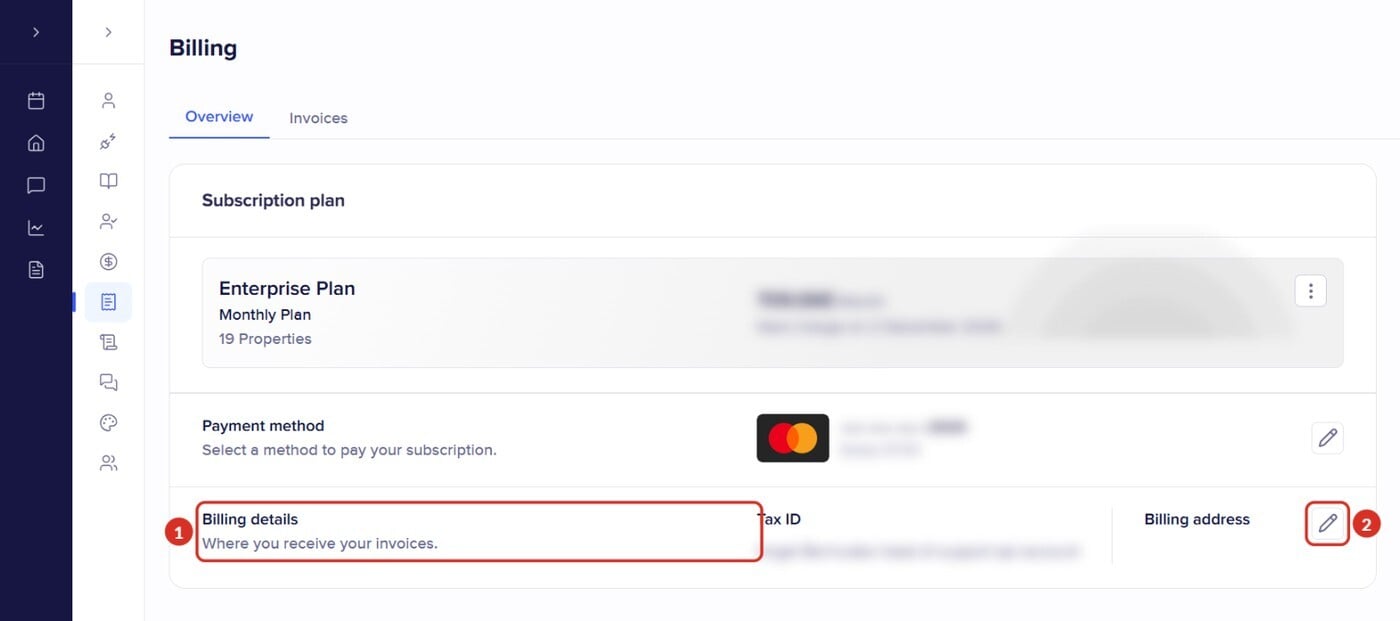
- Go to Settings > Billing, Overview tab (open in the dashboard).
- In Billing details 1 (“Where you receive your invoices.”), click the pencil icon 2. The Billing details window opens.
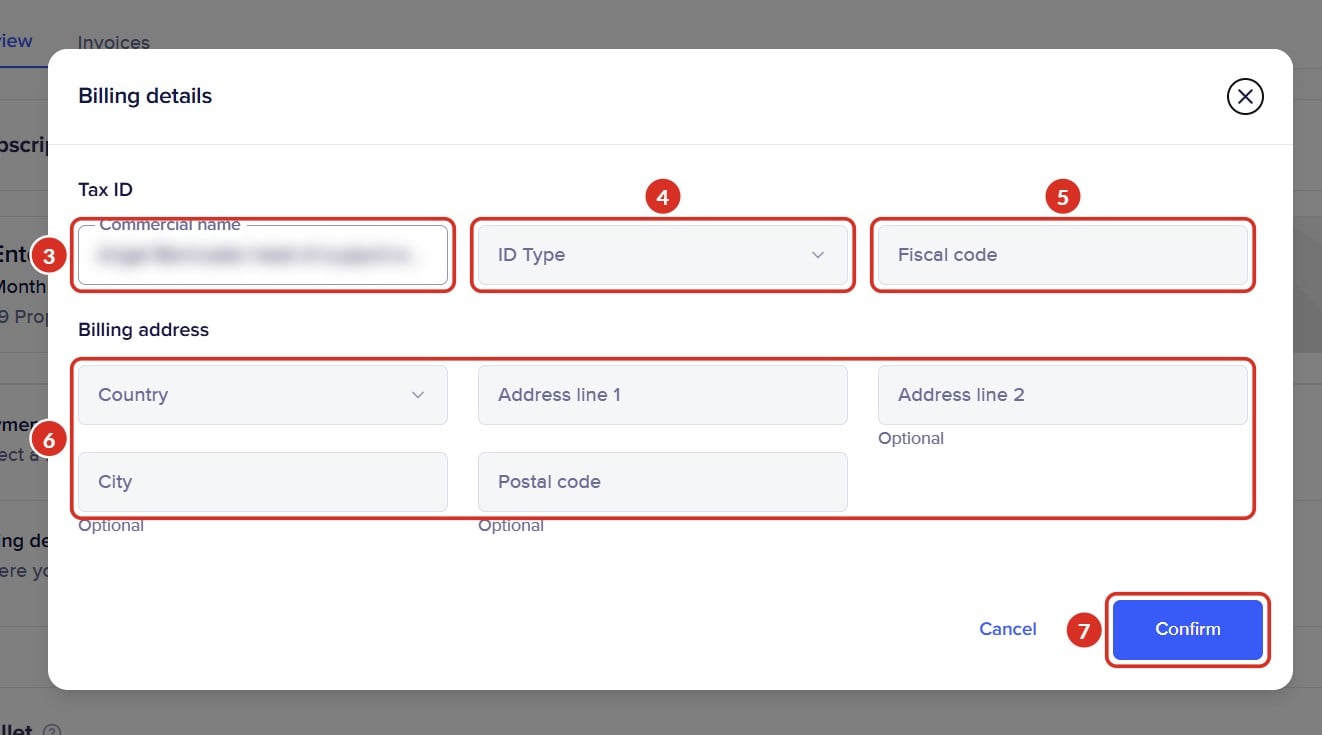
- Fill in or change the details:
- 3Commercial name: the name of your company or your own name, exactly as it should appear on the invoice.
- 4ID TYPE: the country of your VAT number (for example, “ES VAT” for Spain).
- 5Fiscal code: your tax ID or VAT number, without the country prefix (the dashboard adds it) and without spaces. For example, for Spain: A1234567Z.
- 6Billing address: Country, Address line 1 and, if you wish, Address line 2, City and Postal code (these are optional). In some countries, such as Spain, Italy or Portugal, it will also ask for the province.
- Click Confirm 7. You will see the message “Billing details updated”. If you don't want to save the changes, click Cancel.
If an invoice that has already been issued has a mistake
An issued invoice cannot be edited from the dashboard. If your tax details are missing or something is wrong:
- First correct your Billing details, so that future invoices are right.
- Write to us from your account email, through the dashboard chat or at support@chekin.com, with:
- the number or the month of the invoice;
- the correct details: company name, tax ID or VAT number, full address and country.
- We review your case and reply by email.
Common problems
| What happens | Why | Solution |
|---|---|---|
| I can't see Billing in Settings | Only the Owner can see it | Ask the account Owner for the invoices |
| The Invoices tab is empty | It opens on the current month, and that month has not been charged yet | Change the month or the year in the filters |
| I can't find the invoice for my annual plan | The payment date has not arrived yet | It will appear when the payment is processed |
| When I save, it says “Invalid fiscal code” | The number does not have that country's format | Check the ID TYPE and enter the number without spaces or hyphens |
| My country is not in ID TYPE | The list only has VAT numbers from the European Union | Write to us with your tax details |
| My invoice was issued without my details | They were not in Billing details when the payment was made | Add them for future invoices and write to us about the one already issued |
Still have questions? Write to us from the dashboard chat or at support@chekin.com from your account email, including the month or the number of the invoice.