![imagotype-new-chekin-landscape-2-1.png]](https://support.chekin.com/hs-fs/hubfs/imagotype-new-chekin-landscape-2-1.png?width=100&height=40&name=imagotype-new-chekin-landscape-2-1.png)
Answers to the most common problems when sending data to SES Hospedajes. Spain's Ministry of the Interior has issued a decree that introduces changes to the current regulations, and here you will find the most frequently asked questions about this integration.
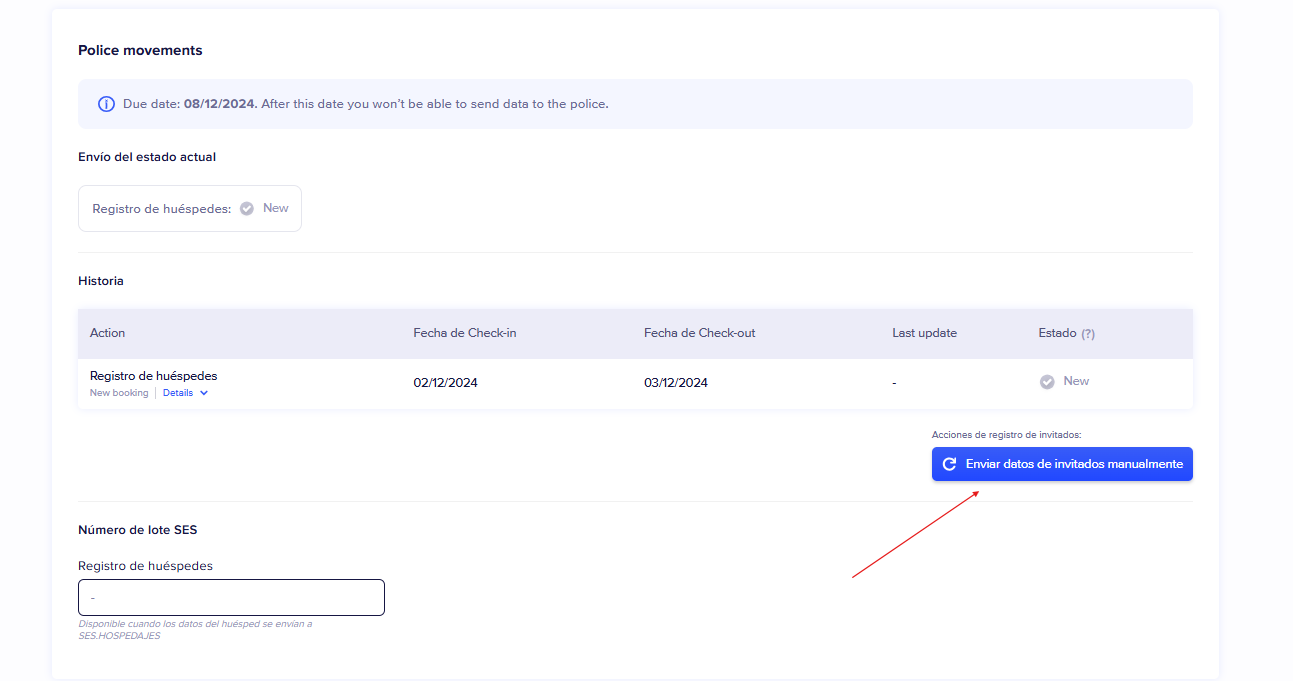
Which button do I use to send manually to SES?
- Log in to your account and go to Bookings.
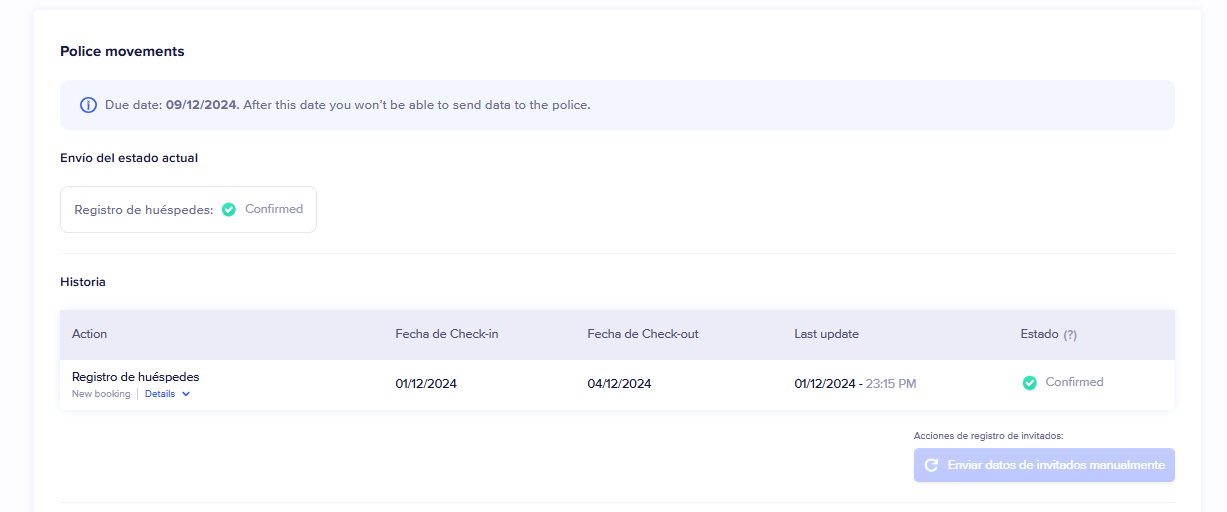
- Open the booking and scroll down to the Police Movements section, about halfway down the page.
- To send the guests' data, click Send guest data manually.
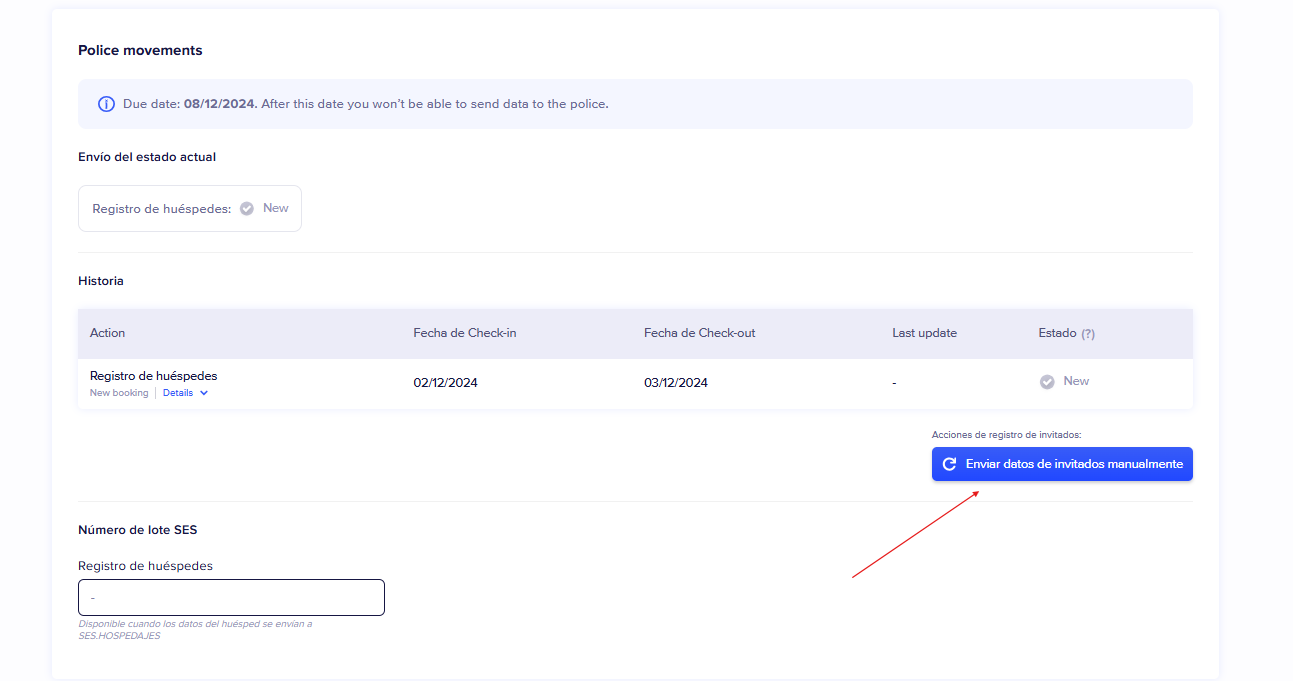
- To send the booking itself (booking registration), click Send booking data manually.
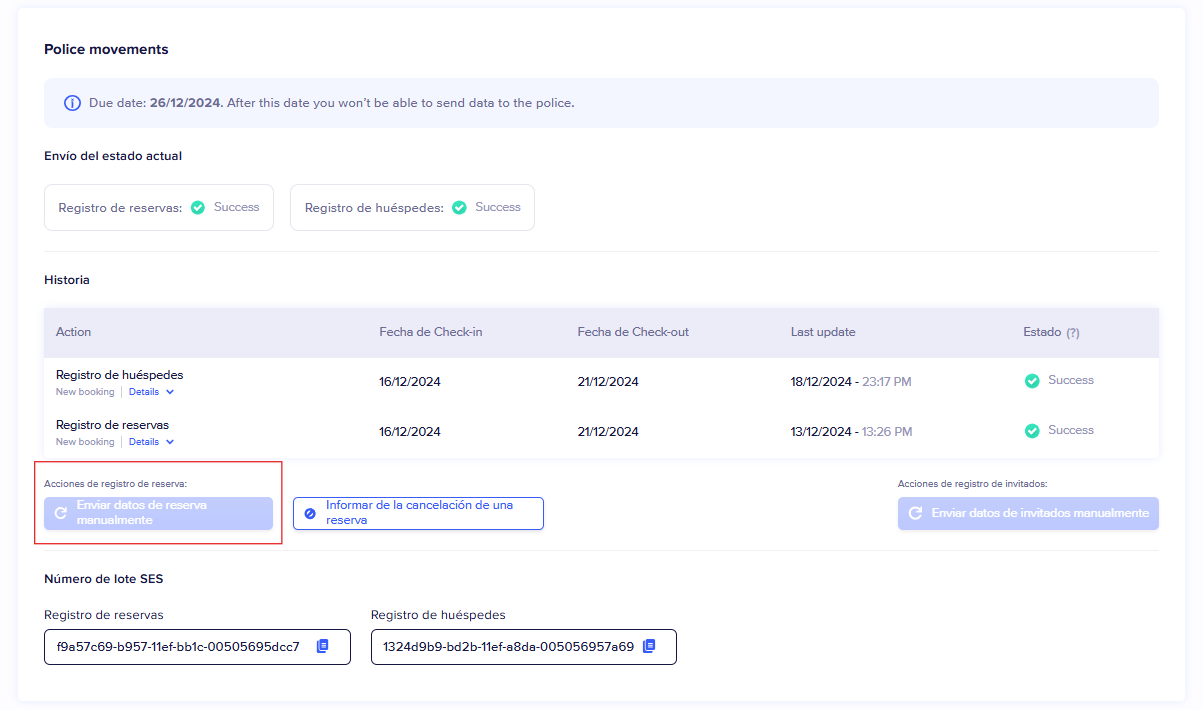
Do not use the Send manually button at the top of the page. We are working so that this button works in the future.
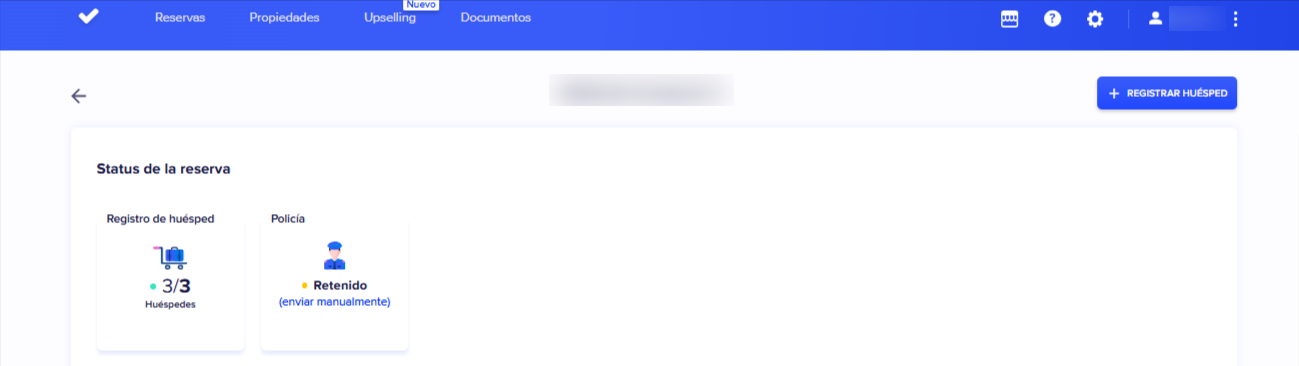
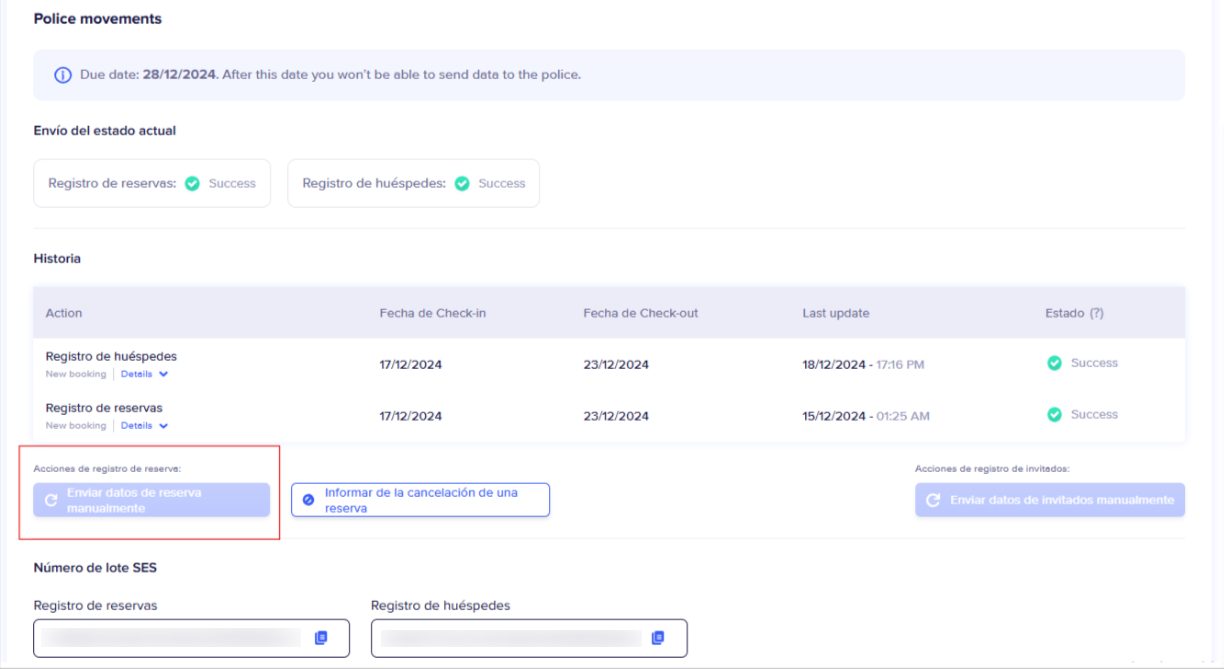
How do I know if SES has received my data?
With SES Hospedajes you will not see the "sent" status, unlike with the Policía Nacional or the Guardia Civil. First SUCCESS appears. Then SES reviews and validates the data, and the status changes to CONFIRMED. Before anything else, check whether the status inside the booking has changed.

What should I do if I receive an error email from SES?
- Find the booking in Chekin. The date that SES indicates is the check-in date. If the email includes a batch, find the booking that has that batch number.
- Click the name of each registered guest and fill in any empty required fields. SES requires more data than other police connections, and when you switch connections some forms may have been left incomplete.
- Correct the data that the error points to (see the cases below).
- Send again using the manual button in the Police Movements section.
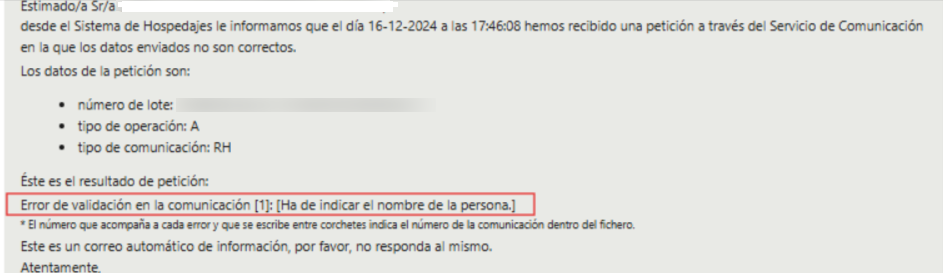
"Ha de indicar el nombre de la persona" (the person's name must be provided)
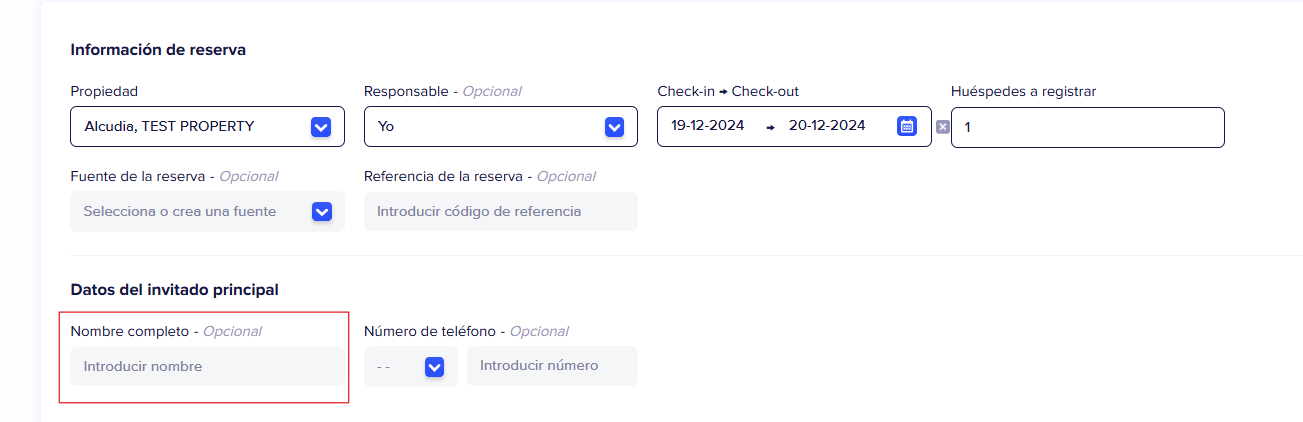
This refers to sending the booking itself. SES could not receive it because the guest's name is not in the booking in Chekin.
- Open your Chekin account.
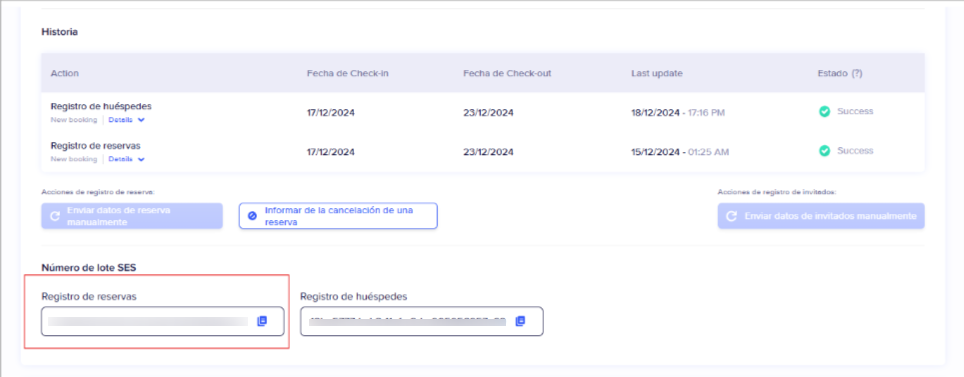
- Check the bookings around the date of the SES email until you find the one with the batch shown in the email.
- Add the guest's name to the booking.
- Click Send booking data manually in the Police Movements section.
"Ha de informar una forma de contacto de la persona: teléfono, teléfono 2 o correo" (a contact method for the person must be provided: phone, phone 2 or email)
SES requires a real contact method for the guest. A phone number or an email is enough; you do not need both. This is common in Airbnb bookings, as Airbnb does not provide the guest's email. In the SES email, "RH" stands for "Reserva de Hospedaje" (accommodation booking).
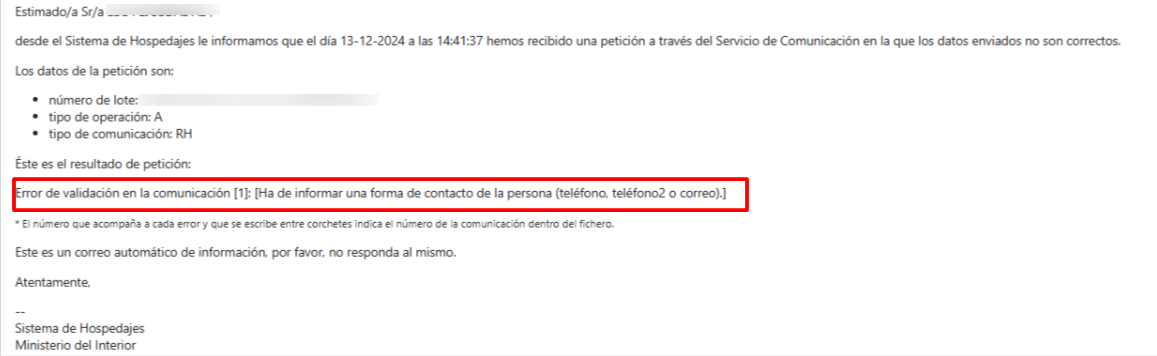
- Open your Chekin account.
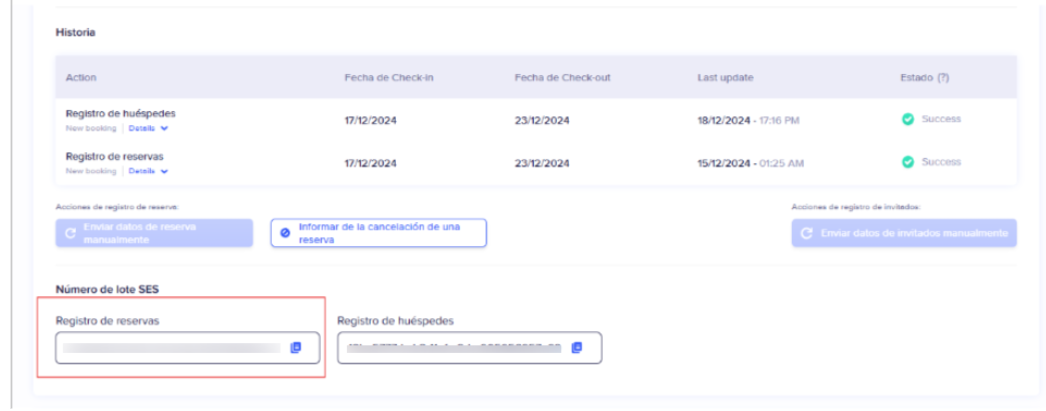
- Check the bookings around the date of the SES email until you find the one with the batch shown in the email.
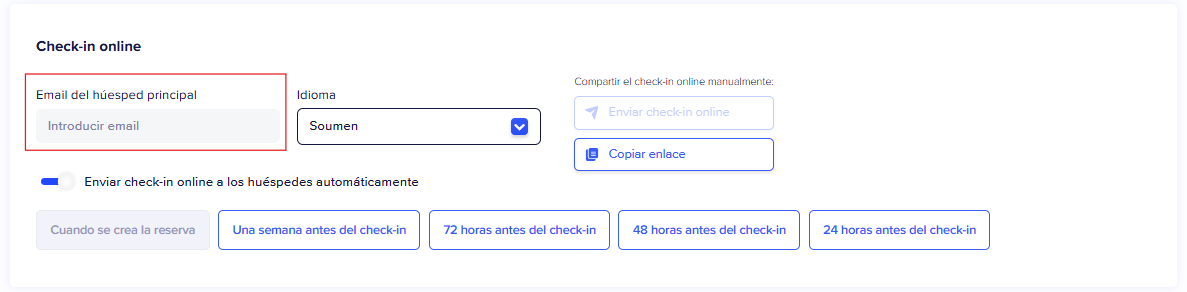
- Ask the guest for their phone number or email and add it to the booking. SES requires real contact details: do not use a made-up address.
- In Police Movements, click Send booking data manually.
If the booking already has a phone number or email and the status is SUCCESS or CONFIRMED, there is no real error: SES sent you the email by mistake. If the data is in your PMS but has not reached Chekin, write to support@chekin.com with an example booking.
"No se admiten datos repetidos de personas con el mismo rol" (repeated data for people with the same role is not accepted)
This means that, in the same submission, two guests have the same document number, or the document number is empty.
- Open the booking and click each registered guest.
- Check that each guest has their own document number, with no spaces or typing errors.
- Correct the data and save.
- Click Send guest data manually in Police Movements.
If the numbers are correct and SES still rejects the submission, write to support@chekin.com with the batch number from the SES email and the check-in date. Do not include guests' personal data.
Postal code error
Open the booking and check that the guest entered the postal code of their city. If it is not correct, fix it and send again using the manual button.
What do the registration statuses mean?
- Scheduled: the registration is queued, waiting for the automatic submission.
- In progress: Chekin is processing the submission.
- Completed: no further action is needed.
- Error: the submission failed. Check the data and resend.
- Incomplete: a guest registration or an active feature of the booking is missing. It may appear even if the data has already been sent.
Why is the manual send button grey or not showing?
While the registration is Scheduled or In progress, or already Completed, the manual send button does not appear or is disabled. For it to appear, the booking needs police submission enabled and at least one guest.
- Click each guest and fill in any empty required fields.
- If, after the night of the check-in date, the registration is still In progress or unsent, write to support@chekin.com with your account email and the booking reference.
What if guests register after the automatic submission?
The data is sent automatically on the night of the check-in day. If a guest registers afterwards, send the data yourself with Send guest data manually in Police Movements.
What happens with bookings made before the SES connection?
The automatic submission may not pick up bookings that already existed before the SES connection was activated. You can send them by hand with Send guest data manually in Police Movements. If any of them cannot be sent, write to support@chekin.com with the booking reference.
Where can I see in SES what Chekin sends?
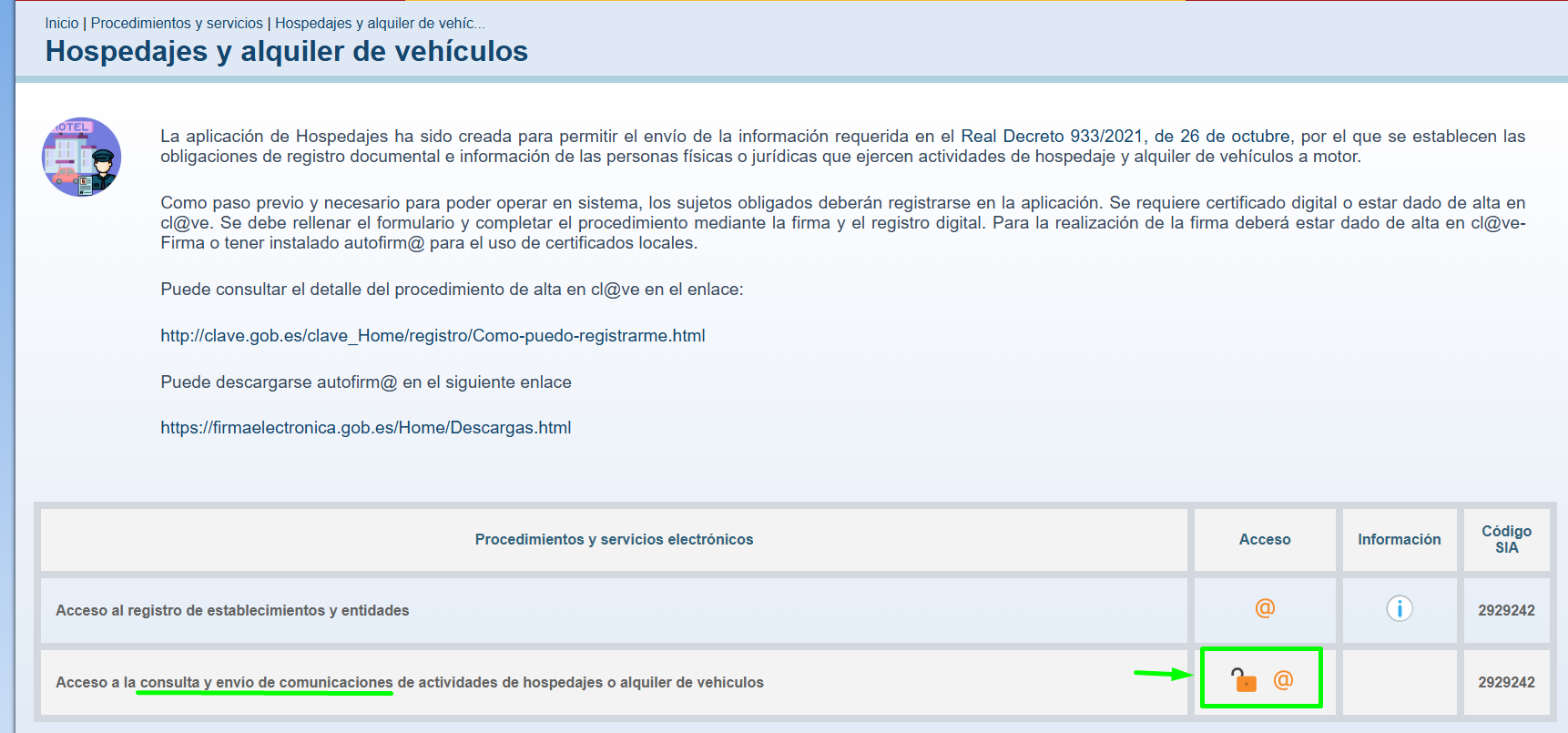
- On the SES website, go to "Acceso a la consulta y envío de comunicaciones de actividades de hospedajes o alquiler de vehículos" (access to view and send communications of accommodation or vehicle rental activities). Log in with a certificate (@ icon) or with a username and password (padlock icon).
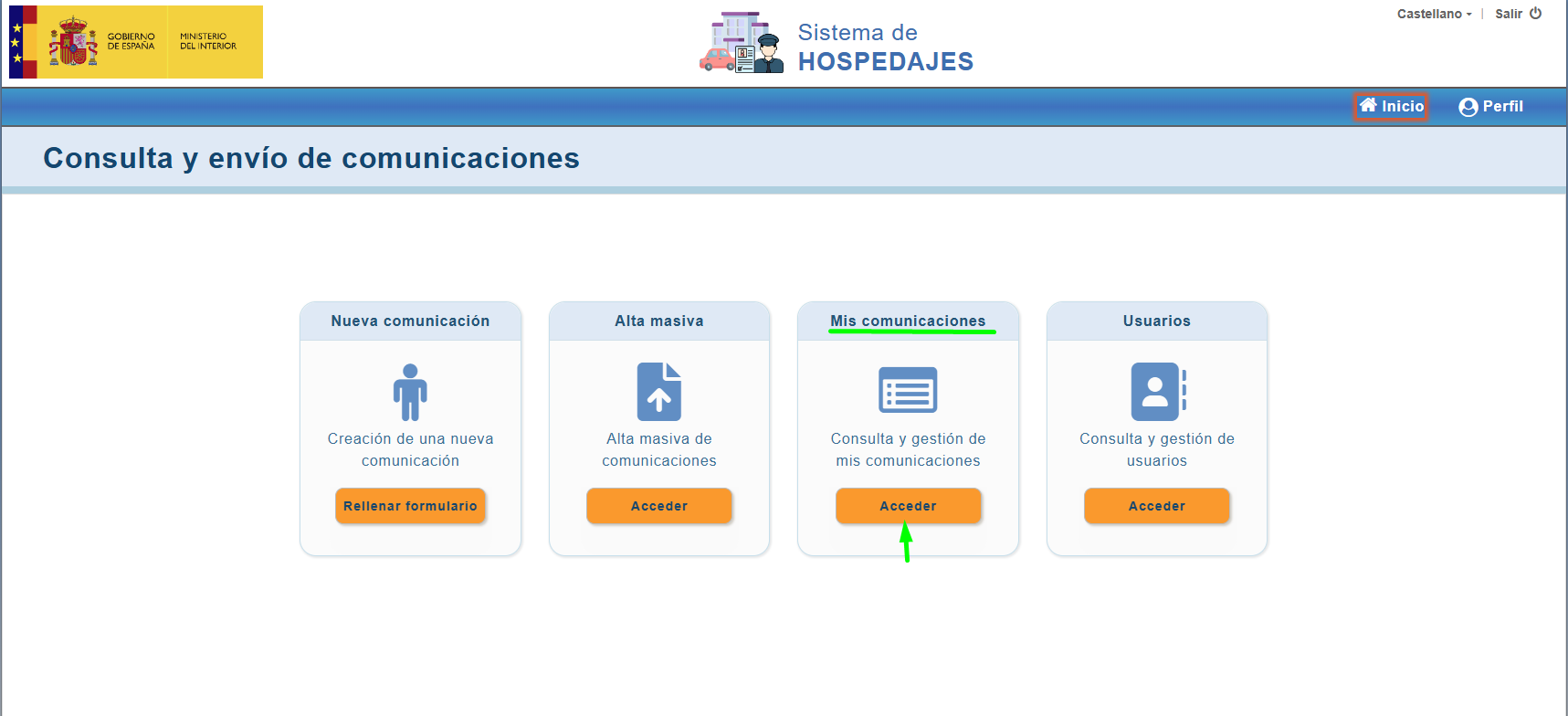
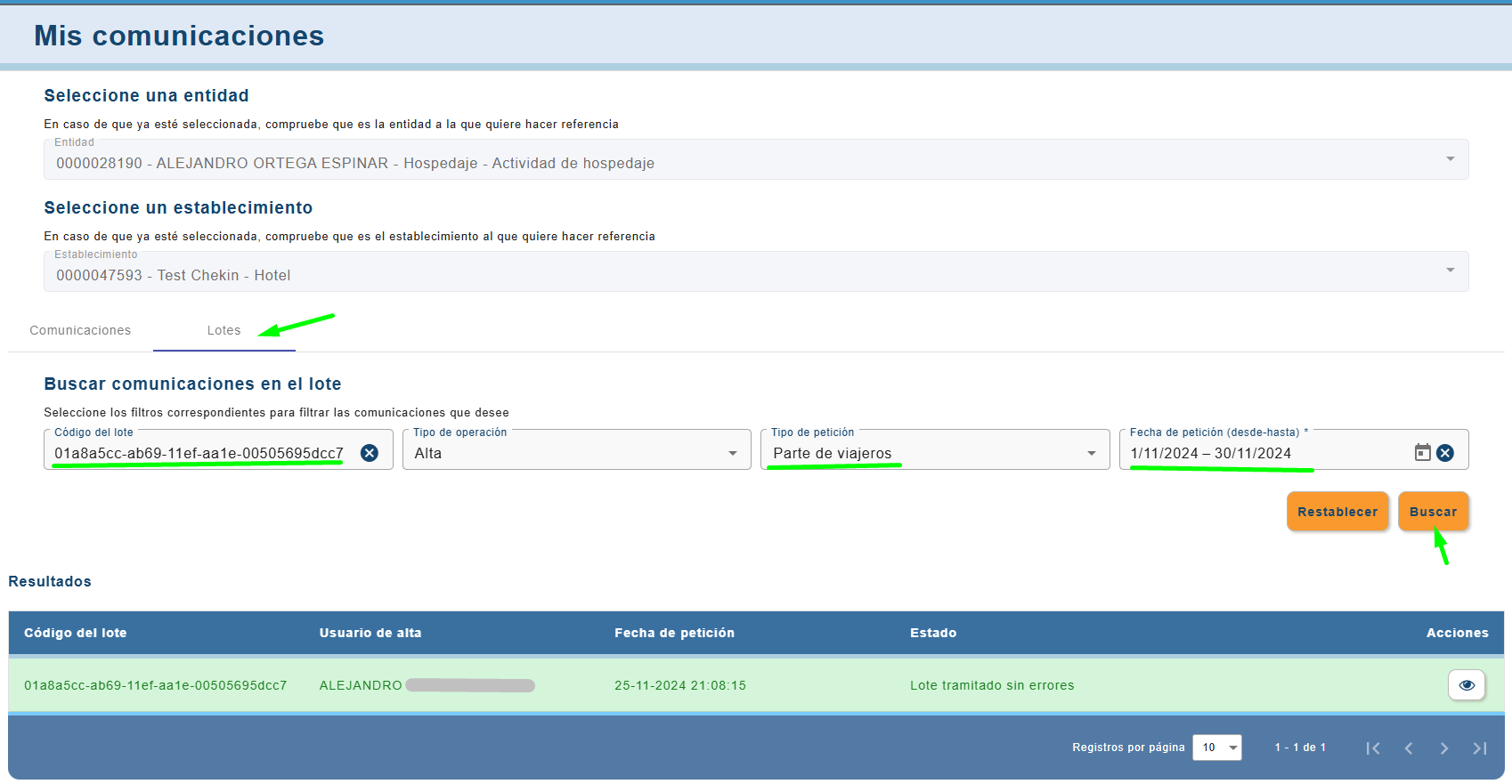
- Look for "Mis comunicaciones" (My communications) and click "Acceder" (Access).
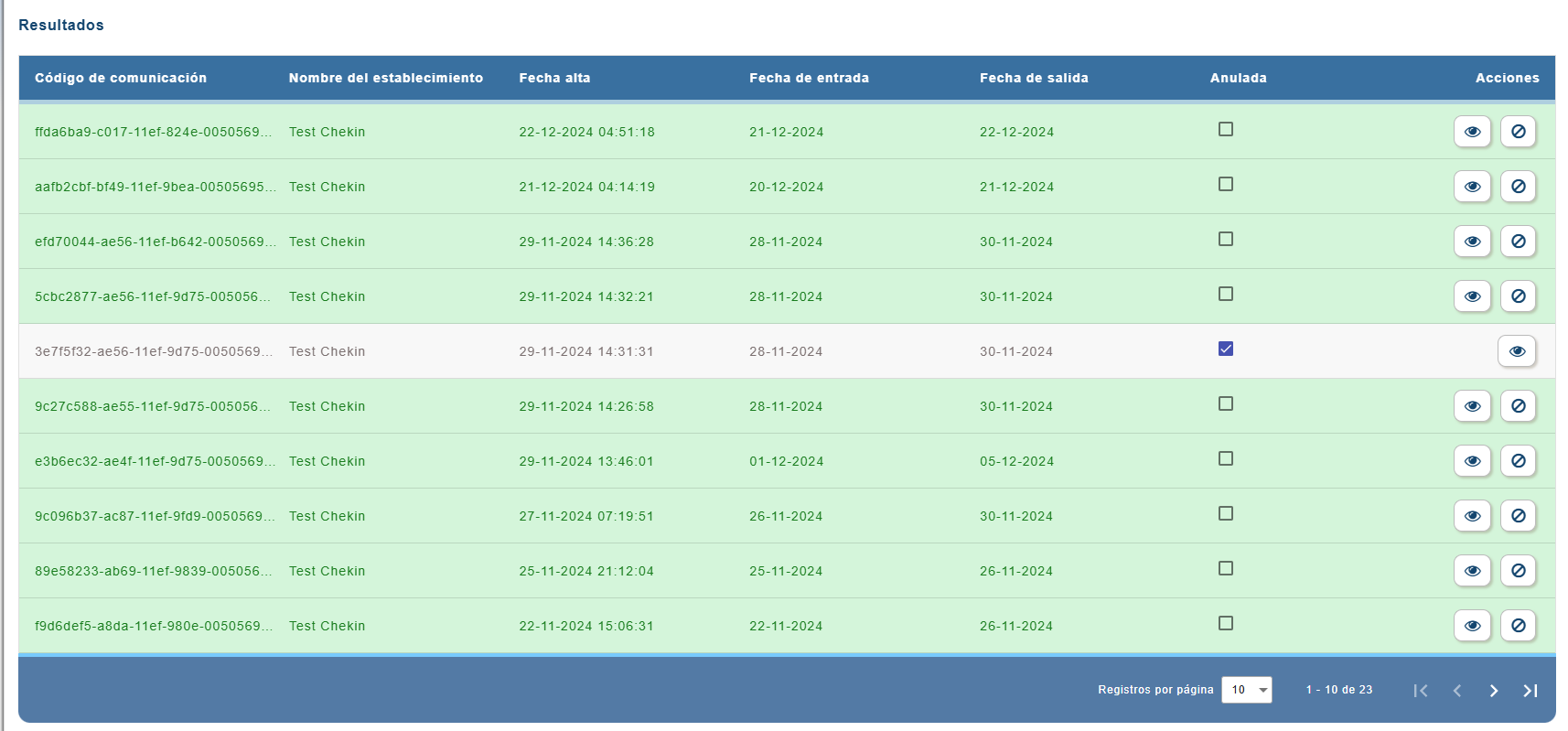
- Choose the "Tipo de comunicación" (communication type: Parte viajeros or Reserva de hospedaje), select the date range and click the search button. The results will be displayed below.
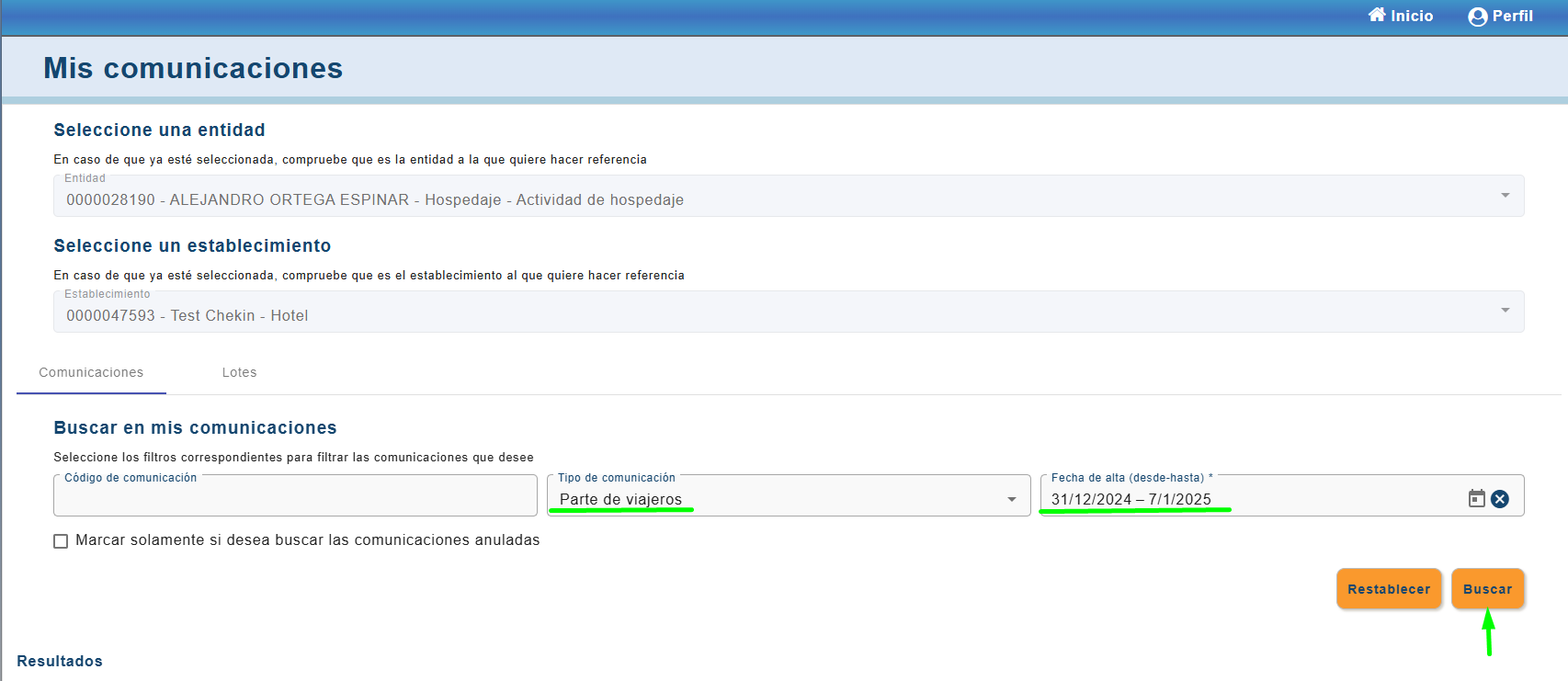
You can also click "Lotes" (Batches), enter the batch code, select the request type and the date range, and click search.
Still having the problem?
If you need more help after reading this article, contact support through the chat or write to support@chekin.com.