![imagotype-new-chekin-landscape-2-1.png]](https://support.chekin.com/hs-fs/hubfs/imagotype-new-chekin-landscape-2-1.png?width=100&height=40&name=imagotype-new-chekin-landscape-2-1.png)
Chekin sends your guests' data in Italy to Alloggiati Web, the portal of the Polizia di Stato. This guide explains how to connect your account and what to do if a submission fails.
What is Alloggiati Web
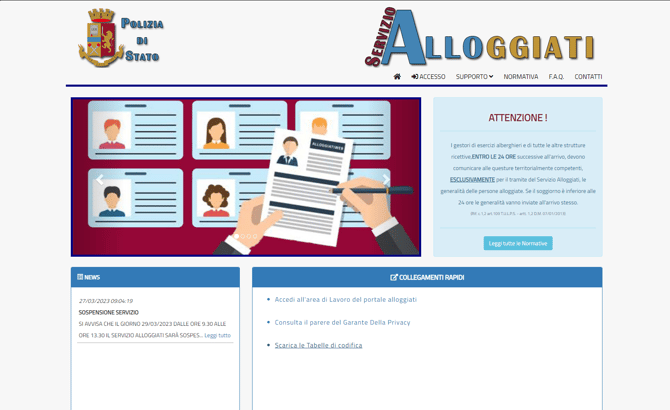
Alloggiati Web is the Italian Polizia di Stato portal for reporting the presence of guests in tourist accommodation: hotels, campsites, bed and breakfasts, rental apartments and others. Once connected, Chekin sends the information for you and you do not have to enter it manually in the portal.
What you need before connecting
1. Username and password
These are the credentials you use to log in to the Alloggiati Web portal.
2. Chiave Web Service
This is an encrypted key made up of numbers, letters and symbols. To get it, log in to the portal, click the user icon in the top right corner and open the key option. Copy it so you can paste it into Chekin afterwards.
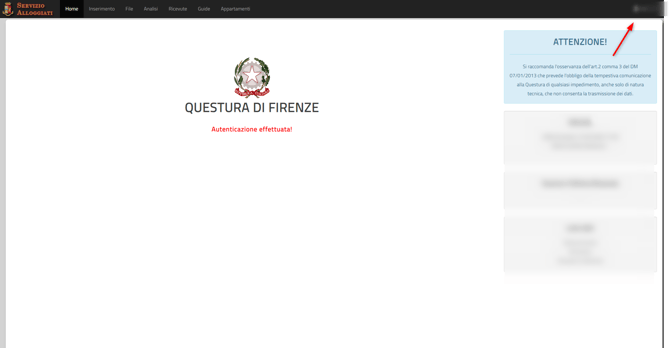
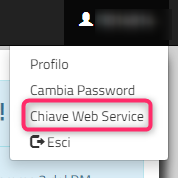
When you open the option, a screen appears with the key, an encrypted code made up of numbers, letters and symbols.
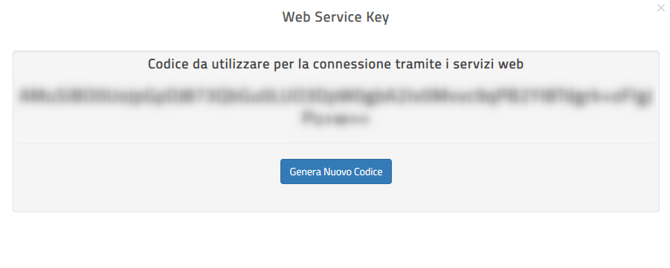
Important: if the portal does not show any key, click Generate Service Key. If there is already one, never click it: it would interrupt the connection you already have with Chekin.
3. Registered apartments
In the top menu of the portal, open Apartments and check that all your properties are registered. If any is missing, add it manually. Chekin needs this to link each property with the portal.
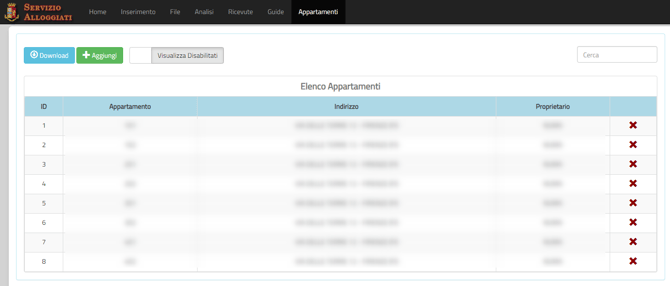
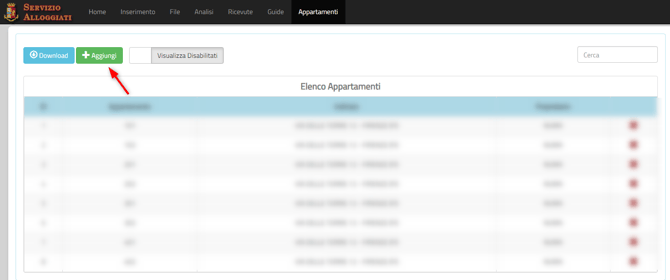
If your account does not have the Apartments section, it is an Owner-type account and you do not need to add apartments.
How to connect Chekin with Alloggiati Web
With that information at hand, the process is as follows. This connection lets Chekin automate the submission of information to the portal.
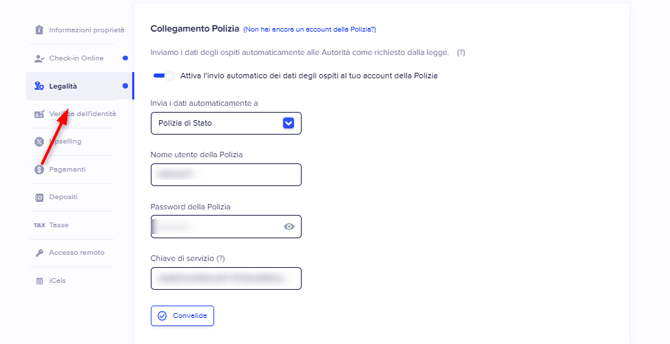
- In the Chekin dashboard, open Properties and select the property.
- Go to the Legal section.
- In the first field, choose Polizia di Stato.
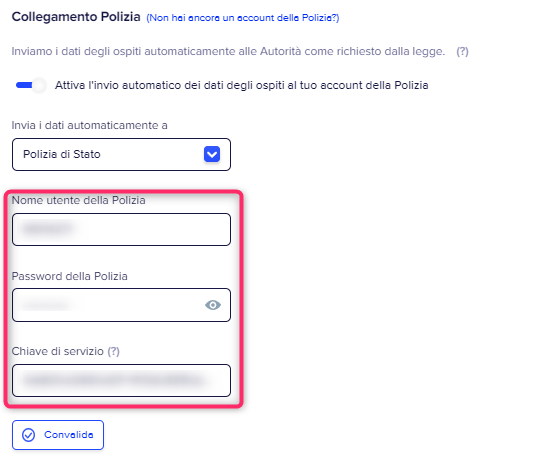
- Enter your Alloggiati Web username and password.
- Paste the Chiave Web Service you copied from the portal.
- In the list of properties that appears, choose the one that corresponds to that property. For example, if you have "Hotel Milano" in Alloggiati Web, select "Hotel Milano" when setting up that property in Chekin.
- Click Validate.
If it still gives an error, write to support@chekin.com.
When the data is sent
Chekin sends the data automatically, once, on the night of the arrival day. You cannot change the time. Alloggiati Web only accepts the submission of each guest within 24 hours.
The connection only affects bookings from the moment you activate it. Bookings made before the connection are not sent automatically.
If the submission fails
The guest registered after the automatic submission
If a guest completed registration after the automatic submission had already run, send it manually:
- Open the booking in Chekin.
- Check that all guests have complete data.
- Click the "Send manually" button in the police section.
In Italy, manual submission is only available for today or yesterday. If the booking has a queued or in-progress status, the button may not appear until it finishes.
Error "data di arrivo non valida" (invalid arrival date)
This error means the arrival date is no longer valid for Alloggiati Web, usually because more than 24 hours have passed. It can no longer be resent from the dashboard. Write to support@chekin.com with your account email and the booking reference, and the team will review it.
One incomplete guest blocks the whole group
Data is sent in groups. If a guest is missing a required field, the submission of the whole group fails. Open the booking, click on each guest, fill in the empty fields, save and send again while you are still within the deadline.
Invalid credentials or Chiave Web Service
If submissions stop working or the connection does not validate, check the credentials:
- Log in to the Alloggiati Web portal with your username and password, and confirm they work.
- Open the key option and copy the Chiave Web Service shown now. The key sometimes needs to be renewed.
- In Chekin, open Properties, the property and the Legal section.
- Update the username, password and key, and choose the property again.
- Click Validate.
Do not click Generate Service Key if the portal already shows a key.
The property does not appear in the list
Check that it is registered in Apartments in the portal. If it is an Owner account, it does not have that section.
How to read the schedina
Example: a booking from 24 to 26 May (2 nights) for 3 guests generates this schedina.
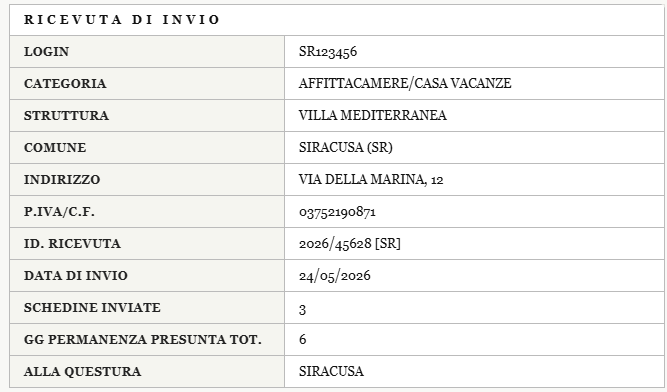
The length-of-stay field asks for the number of nights, not calendar days. Chekin sends the correct nights.
The value "GG PERMANENZA PRESUNTA TOT" is calculated by Alloggiati Web: it multiplies the nights by the number of guests. For example, 2 nights and 3 guests give 6. It is "presunta" (presumed) because it is based on what the guest declares on arrival: if they leave earlier, nothing more needs to be reported to the Questura. Alloggiati Web shares the total with the Police Headquarters, the Ministry and the Tax Agency, and it is used to cross-check tourist tax declarations.
Need help?
Write to support@chekin.com with your account email, the booking reference and the exact error message. Do not send passwords.