![imagotype-new-chekin-landscape-2-1.png]](https://support.chekin.com/hs-fs/hubfs/imagotype-new-chekin-landscape-2-1.png?width=100&height=40&name=imagotype-new-chekin-landscape-2-1.png)
Chekin can generate a rental contract for each booking so that the guest signs it during the online check-in. The contract is signed by the lead guest and is saved in your account.
Turn on contracts in a property
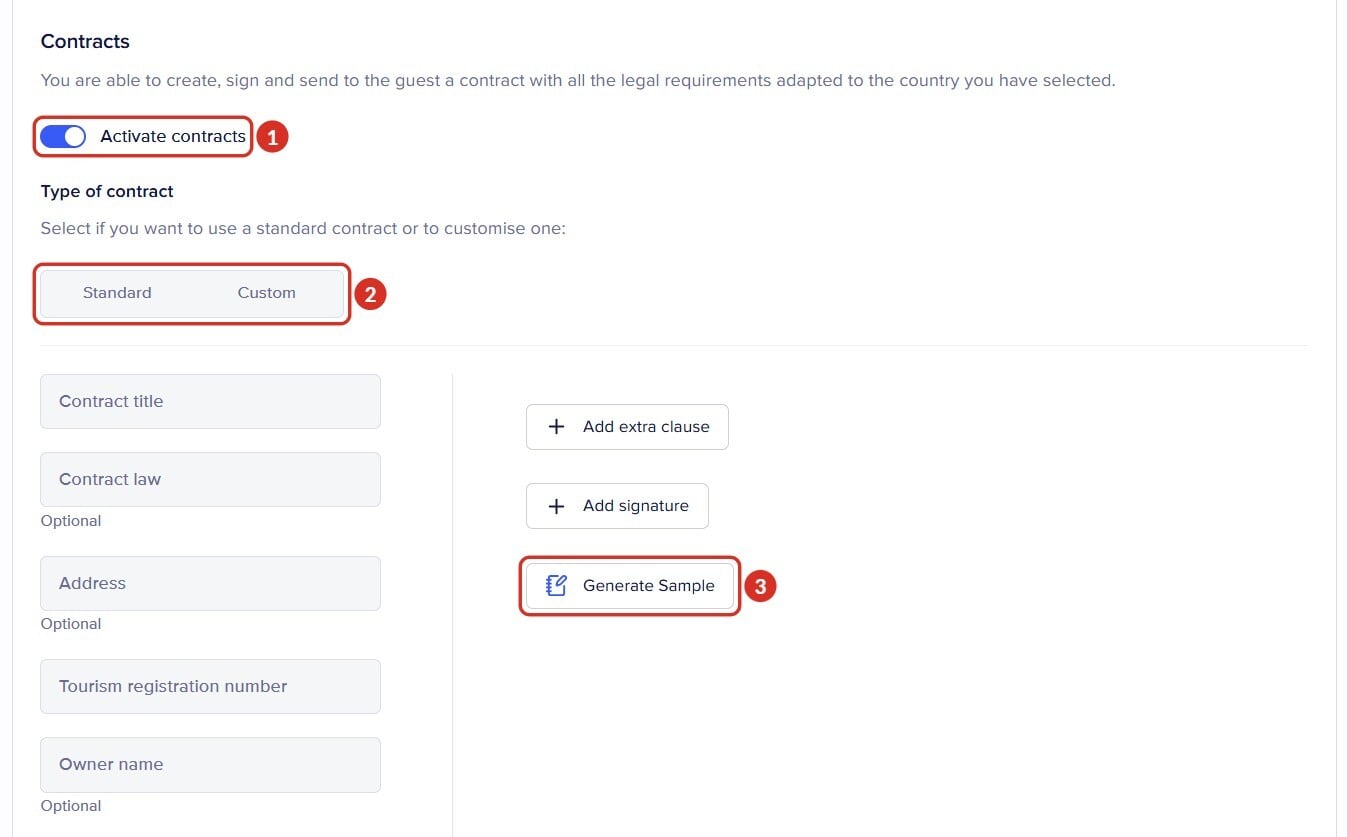
The Contracts block itself explains it: “You are able to create, sign and send to the guest a contract with all the legal requirements adapted to the country you have selected.”
- Go to Properties and open the property (open in the dashboard).
- Go to Legal and scroll down to the Contracts block.
- Turn on Activate contracts 1.
- In Type of contract (“Select if you want to use a standard contract or to customise one:”), choose Standard (Chekin's contract, adapted to the property's country) or Custom (your own template) 2. With Custom, choose your template in Select contract template.
- With Standard, fill in the contract fields: Contract title, Contract law (optional), Address (optional), Tourism registration number, Owner name (optional) and Contact phone (optional). With Add extra clause you add your own rules (for example, for check-in or check-out), and with Add signature, your signature.
- Click Generate Sample 3 to see how it looks before a guest arrives.
- If you don't want a contract for bookings from a particular channel, further down, in Booking sources (“Select the booking sources in which the contract will be excluded.”), choose it in Exempted booking sources. This only works with channels that come with the booking.
- Click Save changes. Turning on the switch is not enough: if you don't save, contracts stay off.
- To use the same settings in other properties, click Export settings to other properties, below Exempted booking sources.
Create your custom template
Templates are created in Settings > Custom Contracts. There you will see My Templates and the Create Contract Template button, which opens the New Template page.
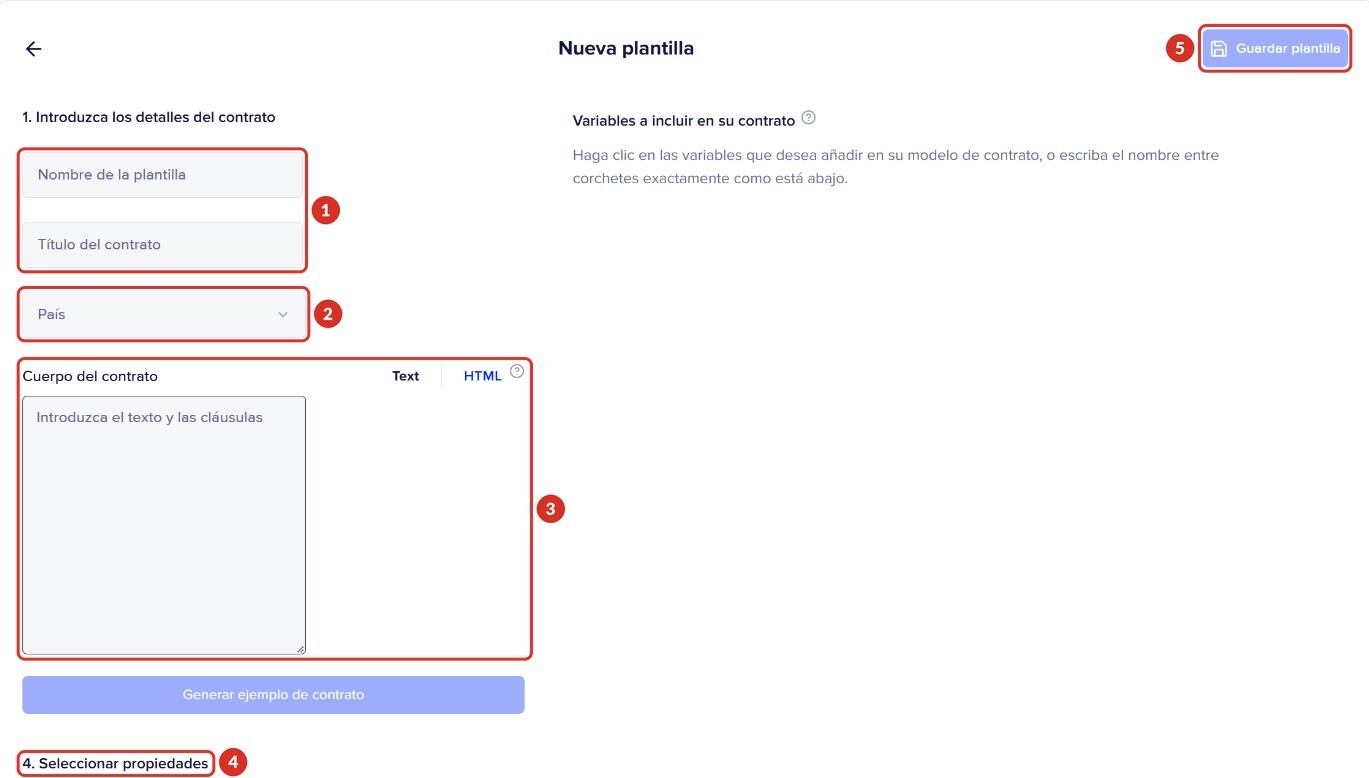
Dashboard shown in Spanish. The numbers match the list below.
- 1Name of the template (only you see it) and Contract title (the guest sees it).
- 2Country: when you choose it, the variables appear (see below).
- 3Body of the contract: write or paste your contract. You can use Text or HTML; if you use HTML, also add the variables to your code. If something doesn't come out right in the contract with HTML, write to us.
- 4Select Properties: only properties that already have Activate contracts turned on appear. A property can only have one template at a time.
- 5Save Template. Then, in each property, choose it in Legal > Contracts.
Variables and sample contract
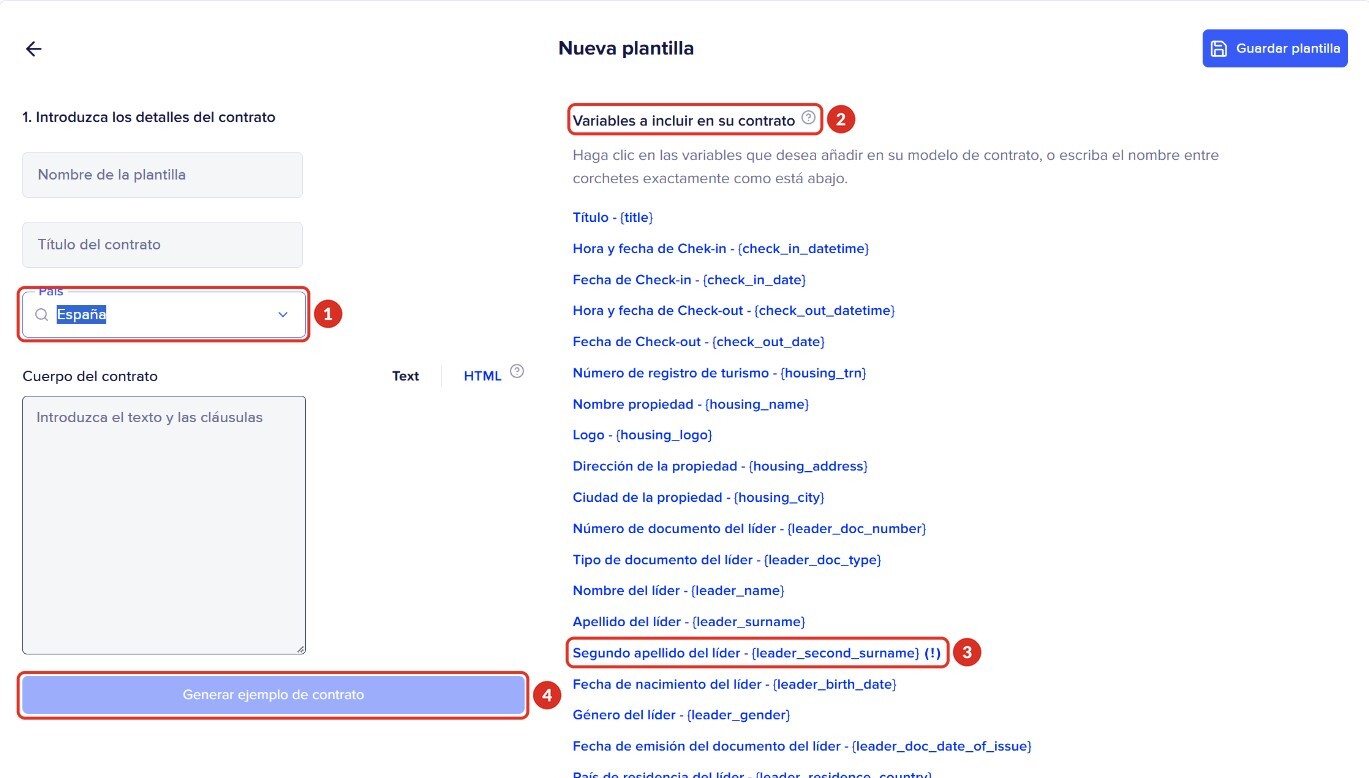
Dashboard shown in Spanish. The numbers match the list below.
- 1Choose the Country and the list of variables for that country appears.
- 2Variables to include on your contract: click a variable or type it between curly brackets exactly as shown, for example {check_in_date}. Chekin replaces it with the real data of each booking.
- 3Variables marked with (!) are optional data: they may be empty if the guest did not fill them in, such as the second surname.
- 4Generate Sample: check how it looks before a guest arrives.
So that the signature and the data come out correctly:
- Put {leader_signature} where you want the guest's signature, and {leader_name} and {leader_surname} for their name.
- The list of variables includes Property address ({housing_address}). If it comes out empty in your contract, write to us.
- The price only appears if the booking includes it (for example, from your PMS). Don't type “€” next to the price variable: it already comes with its currency.
- Contracts in several languages? Create one template per language and assign each one to its properties: each property uses only one template. If you have questions about the contract language, write to us.
How the guest signs
The type of signature is chosen in Legal > Guest signature. The options are:
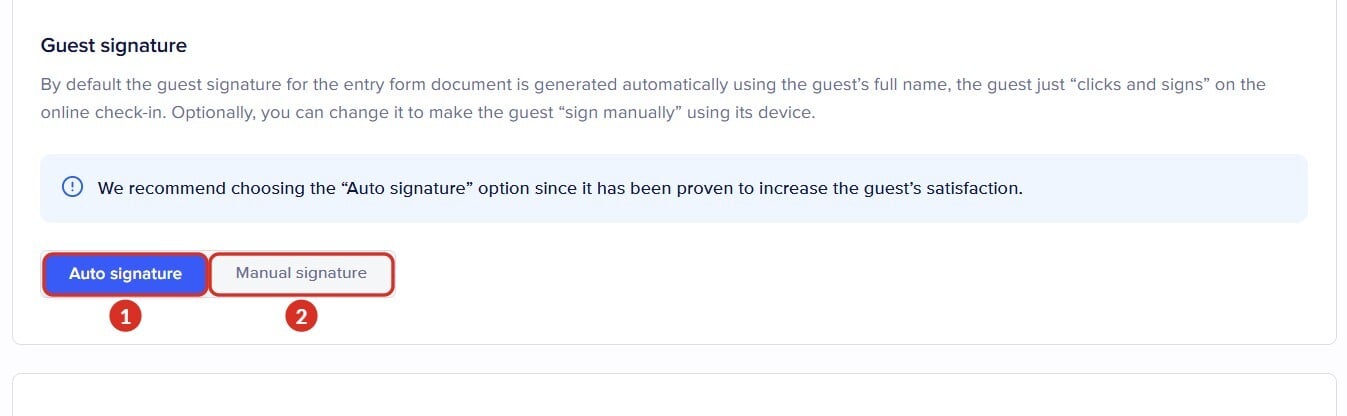
- 1Auto signature (recommended and turned on by default): the guest signs with one click and the signature is generated with their full name. That is why you will see their name at the end of the contract: that name is the signature.
- 2Manual signature: the guest draws the signature with their finger or the mouse on their device.
The guest signs the contract during the online check-in. They can ask us to send them a copy by email, but it is not needed to sign.
Where to see and download the signed contract
All the contracts in your account are in the Documents menu 1, Contracts tab 2, next to Guestbooks.
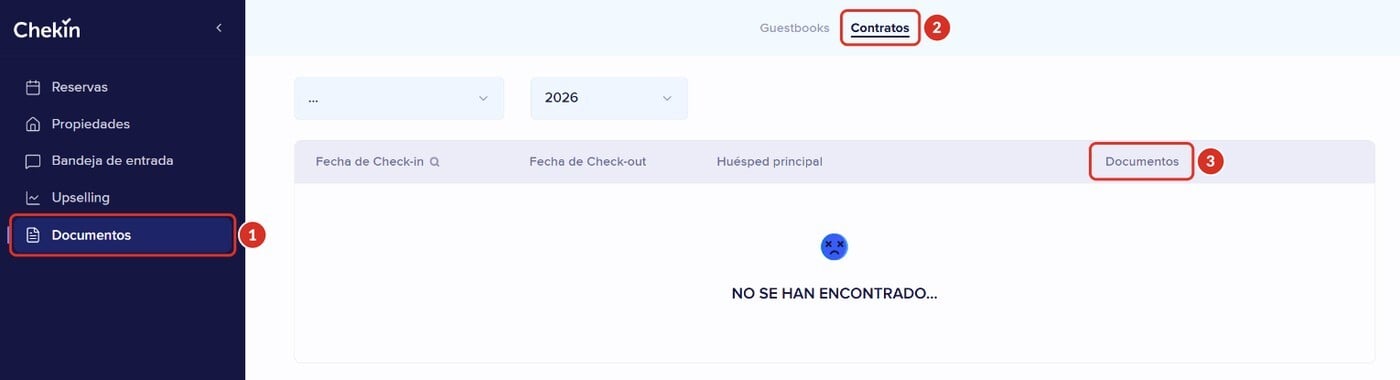
Dashboard shown in Spanish. The numbers match the text above and the list below.
- At the top you choose the property and the year.
- The table has the columns Check-in date, Check-out Date, Guest leader name and Documents 3. From this list you can download each booking's contract; if you can't, write to us.
- If there are no contracts with those filters, you will see “NOT FOUND...”. Try another property or another year.
The contract for one booking: in this list, choose its property and the year, and find it by its Check-in date and Guest leader name. To download your guests' other documents, see how to download your guests' documents.
If a contract does not appear or is incomplete
The guest does not need to repeat the online check-in. Write to us with the lead guest's name and the property, and we will generate the contract again with the details and the signature they already left in their registration.
| What happens | Why | Solution |
|---|---|---|
| The booking has no contract | Contracts were turned off when the guest did the check-in, the booking is from an exempt source, or the guest did not get as far as signing | Check Legal > Contracts. If everything was fine, write to us and we will generate it again |
| The contract has no name or no guest details | The variable is missing from the template, the data is optional and the guest did not fill it in, or there was an error when it was generated | Check the variables in the template. If they are correct, write to us and we will generate it again |
| Only the guest's name appears, not their signature | With Auto signature, the name is the signature | It is signed. If you prefer a drawn signature, switch to Manual signature for future bookings |
| The contract is in another guest's name | That guest registered first and became the lead guest | It cannot be changed in that contract. For future bookings, the person who must appear should register first |
| My property does not appear when I assign the template | That property does not have Activate contracts turned on | Turn it on in Legal > Contracts and go back to the template |
| I changed the template and the old contracts are still the same | Contracts that have already been generated do not change | The changes apply to new contracts. If you need to change one that has already been generated, write to us |
| I can't find the contracts of a property I deactivated | When you deactivated the property, you chose not to keep its documents | Write to us so we can look into it |
Frequently asked questions
- Can I upload my contract as a PDF? No. Copy its text into a custom template and add the variables.
- What record of the signature is kept? The signed contract is saved in Documents > Contracts. For legal questions about its validity, write to dpo@chekin.com.
- Does the contract replace the traveller registration form? No. They are different documents: the contract is between you and the guest.
- I'm looking for the contract I signed with Chekin. That is your commercial contract: ask our sales team for it from the dashboard chat.
Still have questions? Write to us from the dashboard chat or at support@chekin.com with the lead guest's name and the property.