![imagotype-new-chekin-landscape-2-1.png]](https://support.chekin.com/hs-fs/hubfs/imagotype-new-chekin-landscape-2-1.png?width=100&height=40&name=imagotype-new-chekin-landscape-2-1.png)
About the integration
Chekin connects with Smoobu via OAuth. Once linked, reservations and property data sync automatically — no manual imports needed.
Important: This integration only supports Vacation Rental (VR) accounts. Hotel-type accounts are not compatible.
In case you have a hotel in smoobu your rooms will then be created as separate VR units in Chekin
Reservations are imported starting from today up to 120 days ahead (check-in date). The sync runs via webhooks and a cronjob every 3 hours.
Scenario A — You don't have a Chekin account yet
Follow these steps to create your Chekin account and link it to Smoobu in one flow.
1- Go to your Smoobu account and find the Chekin integration. Make sure the button shows "CONNECT" status.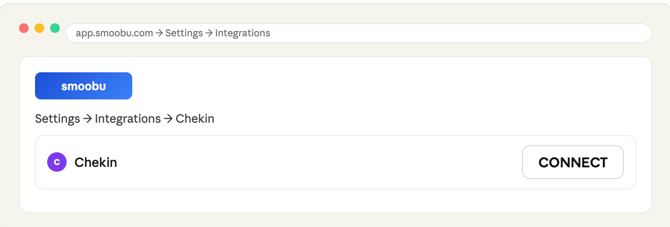
2- Create your Chekin account using this form. Use the same email address registered in Smoobu. Select Smoobu as your PMS and click "CONTINUE".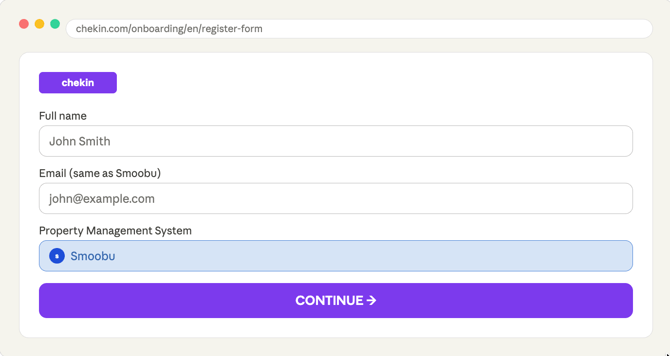
3- You will be redirected back to Smoobu. Click the "CONNECT" button to finalize the OAuth link.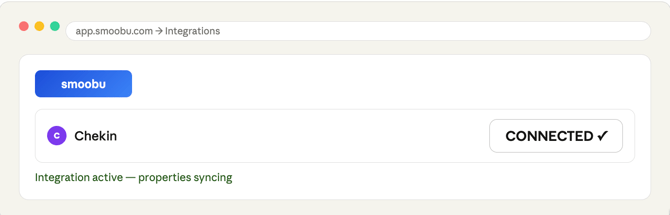
4- Check your email. You will receive a message from Chekin with your credentials. Use them to log into your Chekin account.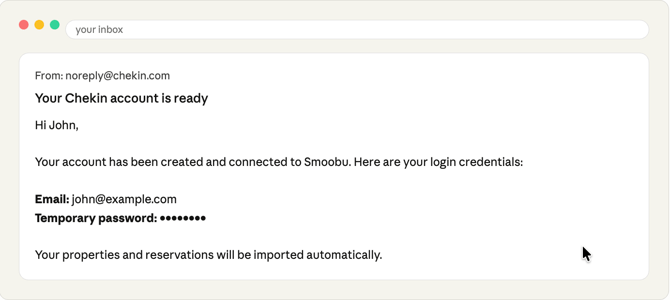
Properties and reservations will be imported automatically. No action needed on your side.
Scenario B — You already have a Chekin account
Smoobu cannot be connected to an existing Chekin account. You must create a new one following the steps above.
Before creating the new account, complete these important steps to avoid losing guest data:
- Go to your Smoobu account and confirm the Chekin integration button shows "CONNECT".
- Create the new Chekin account using this form with the same email used in Smoobu. Select Smoobu as PMS and click "CONTINUE".
- You will be redirected to Smoobu — click "CONNECT" to finalize.
- Log into the new Chekin account with the credentials sent by email.
- Manually note down guest data from all future reservations where guests already checked in on the original account. Add that data to the new account's reservations. This data will not be transferred automatically.
- Disable online check-in on your original account if it was enabled. Reservations with today's check-in will continue to be sent from the original account.
- Notify Chekin support once the new account is ready.
Before deleting your original account: Download all guest documents, as they will not be transferred and will be permanently deleted with the account.
What gets synced automatically
Chekin imports from Smoobu
- Booking reference
- Booking source
- Booking language
- Booking price
- Lead guest phone number
- Lead guest email
Chekin sends back to Smoobu
- Chekin online check-in link
- Virtual keys / remote access link
- Guest registration status
- Upselling link
- Reservation dashboard URL
Custom fields sent to Smoobu
The following custom field is visible at reservation level in Smoobu:
This field only appears for reservations that have been imported into Chekin.
For help configuring communication templates in Smoobu, see the Smoobu communication guide.
How to Get Your Guests to Complete Online Check-in
1. Set up your account
- Create your CheKin account and connect it with Smoobu.
2. Create an automatic message in Smoobu
- Go to Settings → Communication.
- Create a new automated message.
Insert the CheKin check-in link using this code:
[checkInOnlineUrl]

3. Schedule the message
- Set the message to be sent a few days before arrival.
- This ensures enough time for data to sync between Smoobu and CheKin.
- The check-in link is generated once the booking is imported into Smoobu (up to 120 days in advance).
4. Use a ready-made template (optional)
- You can use the template “CheKin.io - online check in”.
- Configure it for automatic or manual sending.
5. Guest completes the check-in
- Guests receive the message and fill in their details via the link.
- Their information is automatically sent to CheKin and then forwarded to the authorities.
6. Review guest data
- You can check and verify all submitted data:
- From the CheKin mobile app
- Or via desktop login
- The data is also stored in your CheKin account for future access.
This setup ensures a smooth, automated check-in process for both you and your guests.
Important Tip: Add a Sending Buffer
Why this matters
- The check-in link is not created instantly.
- The process involves:
- Reservation enters Smoobu
- Smoobu sends it to CheKin
- CheKin generates the check-in link
- The link is sent back to Smoobu
Timing recommendation
- This usually takes about 1 minute, but delays can happen.
- Set a minimum buffer of 10 minutes before sending the message.
- Ideally, use a 30-minute buffer to avoid any sync issues.
Result
- Ensures the check-in link is ready and included in the message.
- Prevents guests from receiving incomplete or broken links.
Reservation Sync
For this integration, bookings will be synchronized every 3 hours. If you want to force the synchronization, click on the Bookings section and then click “Sync” in the top-right corner twice.
If you need any help please contact our support Team at support@chekin.com