![imagotype-new-chekin-landscape-2-1.png]](https://support.chekin.com/hs-fs/hubfs/imagotype-new-chekin-landscape-2-1.png?width=100&height=40&name=imagotype-new-chekin-landscape-2-1.png)
Introduction
If Hotelizer is your main Property Management System (PMS), you can connect your account with Chekin to automatically import all your properties and reservations along with their associated data, allowing you to manage everything in a simple and reliable way. This integration helps you automate key check-in processes, reduce manual tasks, and ensure that your guests’ information is always synchronized between both platforms.
This quick guide will help you connect your Hotelizer account to Chekin and configure the essential settings. Before getting started, make sure you have yourHotel Time API Key/credentials available to create your account on our platform.
🔎 Prerequisites
- Have an active Hotelizer account.
- Obtain your Hotelizer Api Key/credentials (this can only be requested through the Live Chat available within your pms account).
➡️ Steps to connect
- Step 1: Log in to Chekin → https://chekin.com/onboarding/register-form/
- Step 2: Fill in the form with the requested information
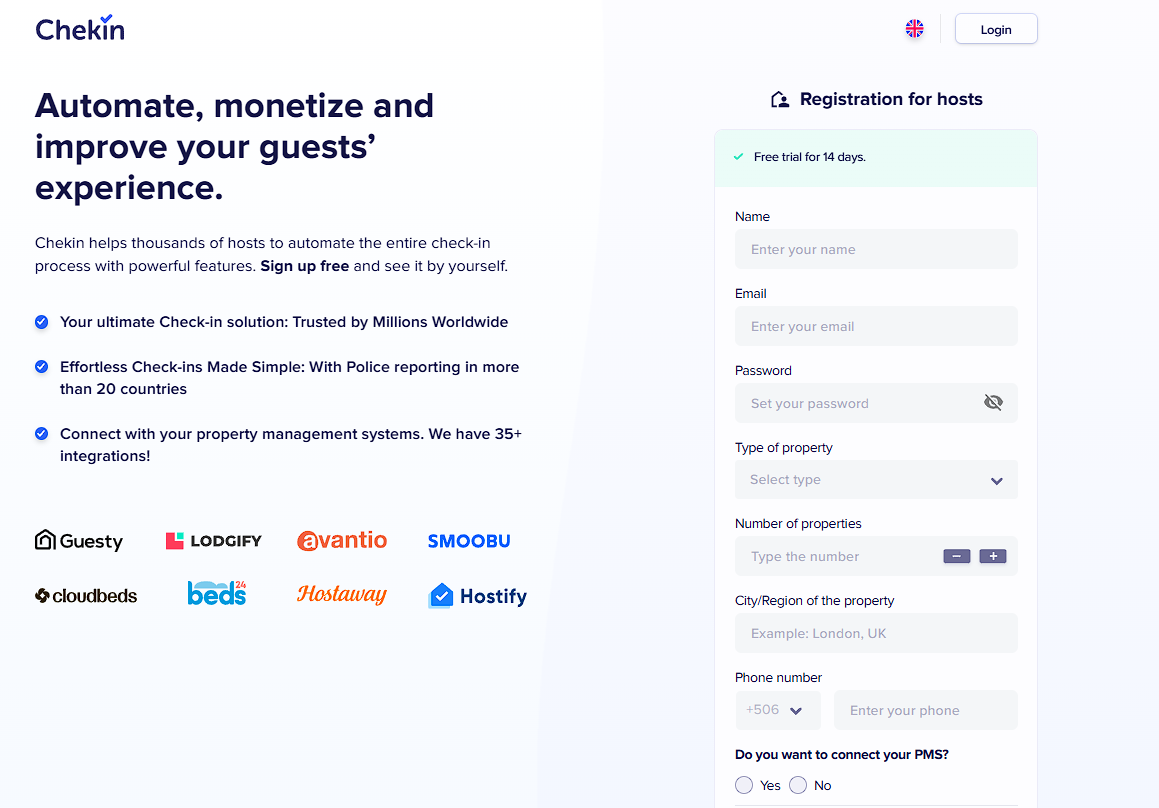

- Step 3: Select the PMS → Hotelizer
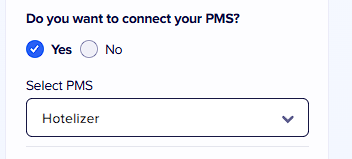
- Step 4: Click the ‘Continue’ button
- Step 5: Enter your API key/credentials and click the ‘Connect’ button
At this moment, the integration between Chekin and Hotelizer is being created. You just need to wait a few minutes, and you will be automatically redirected to your Chekin dashboard. Properties and reservations will be imported automatically, so there is nothing else you need to do except wait for them to appear in your account. Depending on the system’s workload, this process may take anywhere from a few seconds to a couple of minutes.
What data is imported from Hotelizer into Chekin?
- Rooms
- Booking reference
- Multirooms logic
- Booking Price
What data is sent from Chekin to Hotelizer?
We’re only sending the LEAD GUEST data
- Name
- Surname
- Doc type
- Doc number
- Nationality
- Issue country
- Date of birth
- Phone number
- Gender
Reservation Sync
For this integration, bookings will be synchronized every 3 hours. If you want to force the synchronization, click on the Bookings section and then click “Sync” in the top-right corner twice.
If you have any questions please contact our suppor team at support@chekin.com