![imagotype-new-chekin-landscape-2-1.png]](https://support.chekin.com/hs-fs/hubfs/imagotype-new-chekin-landscape-2-1.png?width=100&height=40&name=imagotype-new-chekin-landscape-2-1.png)
The Formula Builder (shown as Price automation when you add an item) is a no-code calculation engine for Certified invoices. It lets you define conditions and formulas on your booking data so that Chekin calculates the amounts of your invoice items automatically and assigns them to the right submission category.
Before using it, read Invoice items in certified invoicing: what they are and how to manage them: the Formula Builder creates generated items, and only active items are declared.
When to use it
- Your PMS sends gross prices (VAT included) and you need to declare the net amount.
- The VAT rate depends on the booking source (for example, Booking.com or Airbnb).
- You need to split the booking amount into revenue, VAT and a municipal or tourist tax.
- A fee must be divided by the number of guests or nights.
Key concepts
- Variables: values you can reuse in formulas. A variable can be a constant (for example a VAT rate of
0.13) or depend on a condition (for example, if source is Booking, then 0.10). - Formulas: arithmetic operations with variables and booking data that calculate the amount of a generated item. You write them in the Manual Formula field of a generated item.
- Default variables: for example
total_sum_all, the sum of all items except generated ones, andnumber_of_guests.
How to open the Formula Builder
- Go to Properties, open the property and click Certified invoices.
- Scroll down to the Invoice Items Management section and click Add item.
- Choose Price automation. The Formula Builder Engine window opens with two panels: Variables and Generated Items.
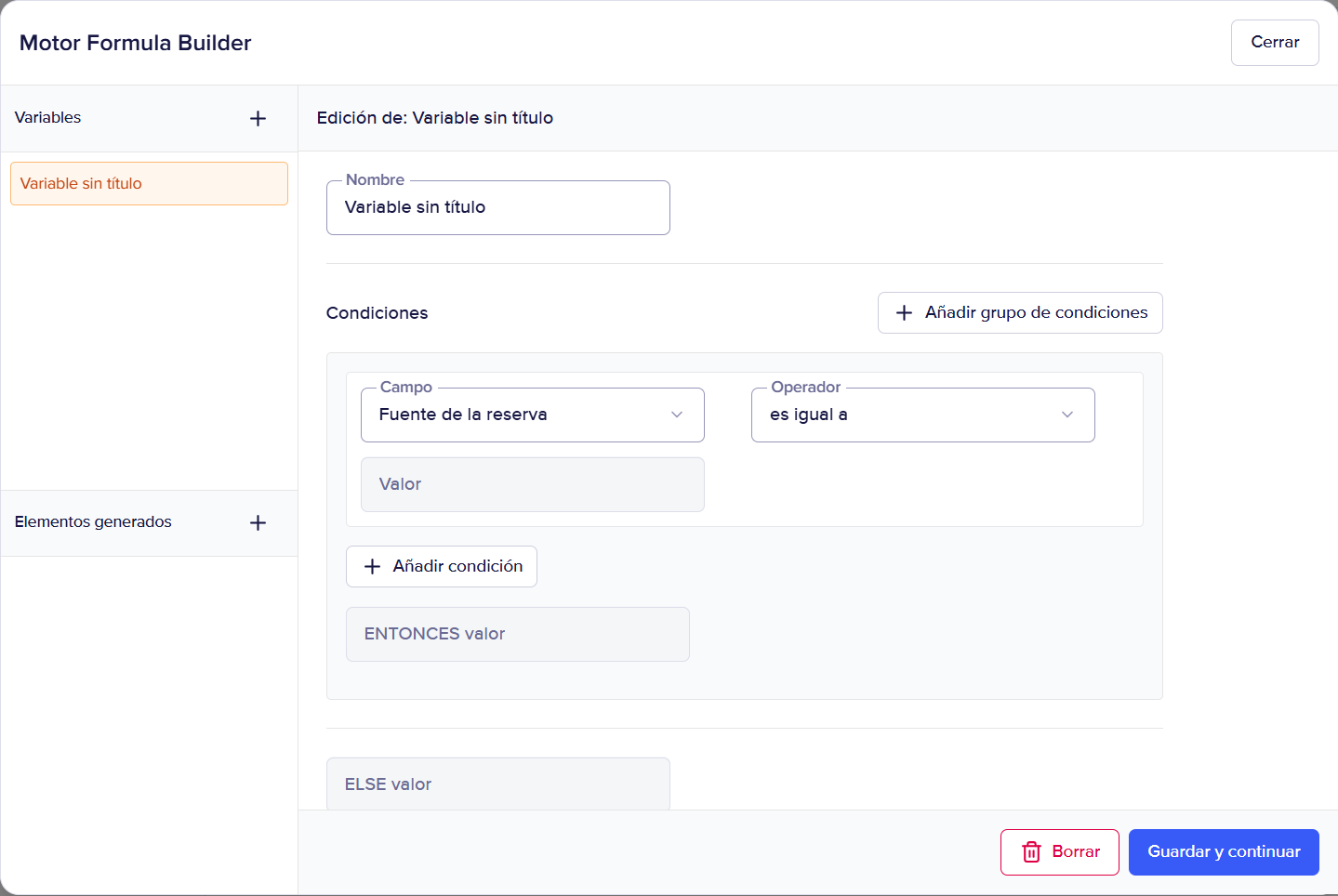
Interface shown in Spanish.
Example 1: declare the net amount when the price includes VAT
- Create a variable for the VAT rate. Add a condition such as If source is Booking, then 0.10. Write the source name exactly as it appears in your account (for example "Booking" or "booking.com").
- Create a generated item with this formula to get the net amount from the gross amount:
GROSS / (1 + Your_VAT_rate) - Save the item and make sure it is active.
- Set the original item with the gross amount to inactive. Otherwise the amount is declared twice.
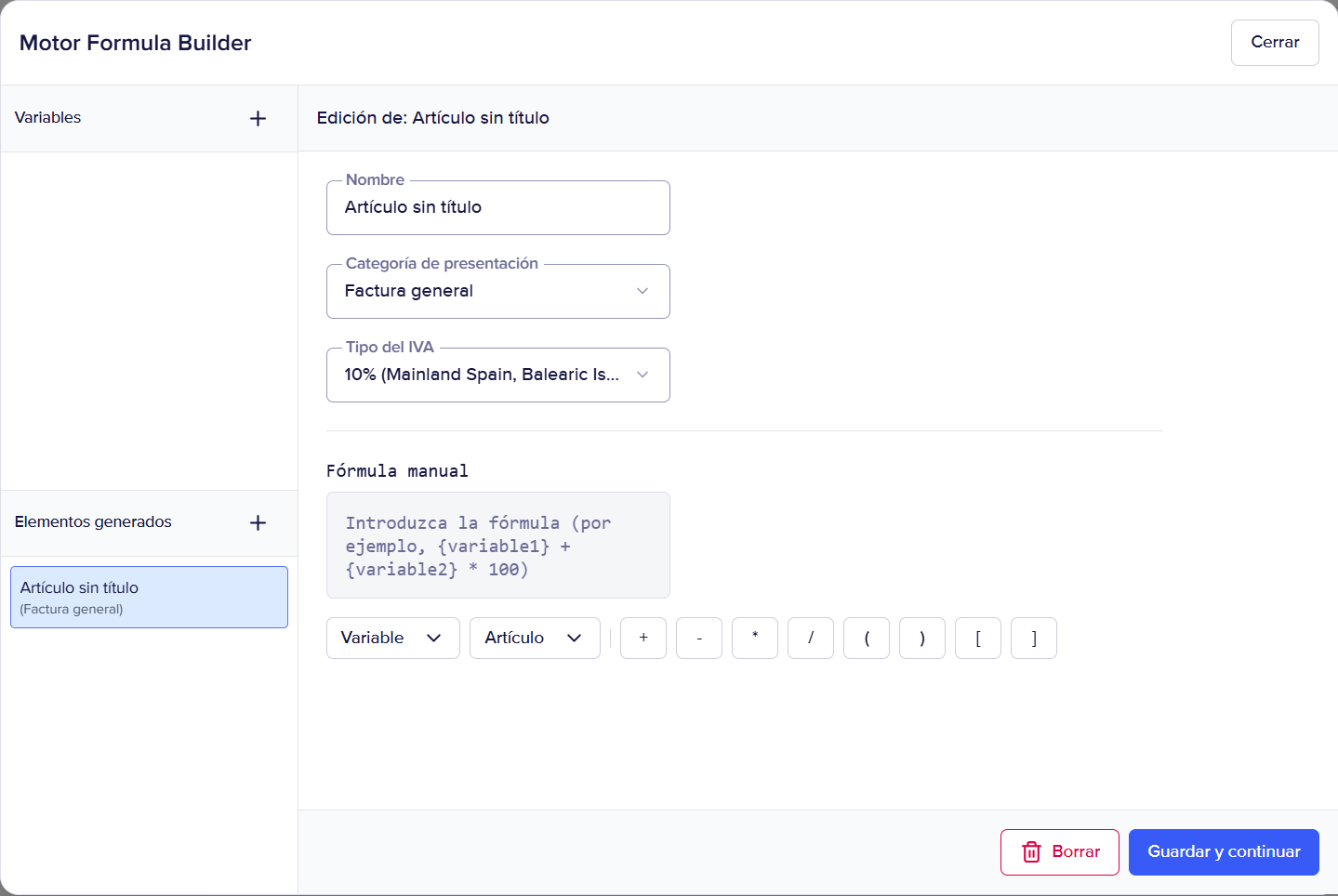
Interface shown in Spanish.
Example 2: split the booking into revenue, accommodation tax and tourist tax (Greece)
Variables (no conditions, so they always apply):
MunicipalTaxRate=0.0075VatRate=0.13Tourist Tax: the tourist tax item from your items list.
Formulas:
- TouristTaxFinal =
{Tourist Tax} / {number_of_guests} - AmountForDecomposition (booking amount before any taxes), category General invoice:
({total_sum_all} - ({Tourist Tax} / {number_of_guests})) / (1 + {VatRate} + {MunicipalTaxRate}) - AccommodationTax, category Accommodation tax:
{AmountForDecomposition} * {MunicipalTaxRate}
Finally, deactivate every item that must not be sent. Chekin only adds up active items, groups them by submission category and sends one total per category.
Formula Builder or commission rules?
If you only need to subtract a percentage (an OTA commission or VAT included in the price), you can use commission rules instead. Avoid using commission rules and the Formula Builder on the same property, because both change the declared amounts.
Good practices
- Check the VAT rate and submission category of each item before creating formulas.
- Test your setup on one booking and review the invoice before sending invoices automatically.
- Keep only the items you want to declare active.
If you have questions, write to us at support@chekin.com.