![imagotype-new-chekin-landscape-2-1.png]](https://support.chekin.com/hs-fs/hubfs/imagotype-new-chekin-landscape-2-1.png?width=100&height=40&name=imagotype-new-chekin-landscape-2-1.png)
This article explains how to configure the EMAAR integration in Chekin, how guest and overnight stay data is sent, and how to troubleshoot the most common issues. EMAAR uses the Stats Connection section and follows a different flow from DTCM police connections.
📍 Where the EMAAR connection is configured
The EMAAR connection is configured per property under the Stats section.
Path:
Properties → Select property → Legal → Stats Connection
Each property must be configured individually. There is no global EMAAR configuration.
⚙️ How the EMAAR integration works
-
EMAAR requires overnight stays reporting.
-
Data is sent only for same-day check-ins.
-
Submissions are validated against EMAAR rules (dates, room count, guest data).
-
EMAAR systems are often slow, which may result in timeout errors.
-
A timeout does not always mean the booking was not created.
🔌 How to connect an EMAAR account
-
Go to Properties and open the property.
-
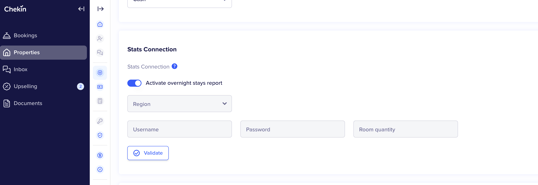
Navigate to Legal → Stats Connection.
-
Enable Activate overnight stays report.
-
Select the correct Region.
-
Enter:
-
Username
-
Password
-
Room quantity (as registered in EMAAR)
-
-
Click Validate.
Validation confirms that the credentials and property configuration are correct. If validation fails, EMAAR submissions will not be sent.
🔍 How to review EMAAR submissions
-
Go to Guest Registrations.
-
Filter by:
-
Stat account (EMAAR)
-
Check-in date (same start and end date)
-
-
Click Search.
-
Use Status check-in to identify failed or completed submissions.
⚠️ Common EMAAR errors and how to fix them
Validation fails
Cause
Incorrect credentials, wrong region selected, or an invalid room quantity.
How to fix
-
Double-check the selected Region.
-
Ensure the Room quantity matches the EMAAR property configuration.
-
Re-enter credentials carefully.
-
Click Validate again.
Timeout errors
Cause
The EMAAR system is slow or temporarily unavailable.
How to fix
-
Retry the submission manually.
-
Wait a few minutes between retries.
-
Multiple retries may be required.
Booking not found in EMAAR
Cause
The submission failed completely.
How to fix
-
Log in to the EMAAR portal.
-
Use Add new guest.
-
Manually add the booking using the data from Chekin.
Status check-in = Error (no timeout)
Cause
Invalid or missing guest data, or EMAAR-side validation rules.
How to fix
-
Open one of the errored records.
-
Review the error message.
-
Correct guest data (document details, nationality, dates).
-
Retry the submission.
Booking date not accepted
Cause
EMAAR only accepts submissions for same-day check-ins.
How to fix
-
Confirm the check-in date matches the current date.
-
Past or future dates cannot be sent to EMAAR.
Credentials stop working after initial success
Cause
The EMAAR password was changed, expired, or the account was locked.
How to fix
-
Ask the client to verify credentials directly in the EMAAR portal.
-
Update them in Properties → Legal → Stats Connection.
-
Validate again before retrying submissions.
✅ Best practices for EMAAR
-
Always validate after entering or updating credentials.
-
Expect timeouts and retry calmly.
-
Focus on same-day check-ins when troubleshooting.
-
When in doubt, verify directly in the EMAAR portal.
🆘 When to escalate
Escalate if:
-
Validation succeeds but submissions fail repeatedly.
-
Errors persist after multiple retries.
-
EMAAR systems appear to be unavailable.
Provide:
-
Property ID
-
Reservation ID
-
Error message
-
Screenshots if available