![imagotype-new-chekin-landscape-2-1.png]](https://support.chekin.com/hs-fs/hubfs/imagotype-new-chekin-landscape-2-1.png?width=100&height=40&name=imagotype-new-chekin-landscape-2-1.png)
Which document you need
| Document | What it is for | Where to find it | Format |
|---|---|---|---|
| Guestbook | It brings together the numbered entry forms of all the guests of a property. It is the record you may be asked for during an inspection | Documents > Guestbooks > Generate guestbook | PDF, by email |
| Entry forms for a booking | The details and signature of each registered guest | Bookings > the booking > Guests & registration > Download all | |
| Contract | The contract signed by the main guest | Documents > Contracts (how to turn them on) | |
| Authority receipt | The police reply to each submission. Only some authorities provide one | Documents, the authority's tab | |
| Guest report or booking report | A list to review or to use in another program | Bookings > More actions | Excel |
| Files for authorities without automatic submission | Data you have to upload to the portal yourself (Puglia, Vienna, VAU report…) | Bookings > More actions or the guide for each connection | XML, TXT or CSV |
Generate and download the guestbook
The guestbook does not download straight away: you generate it for a period and you receive it as a PDF by email.
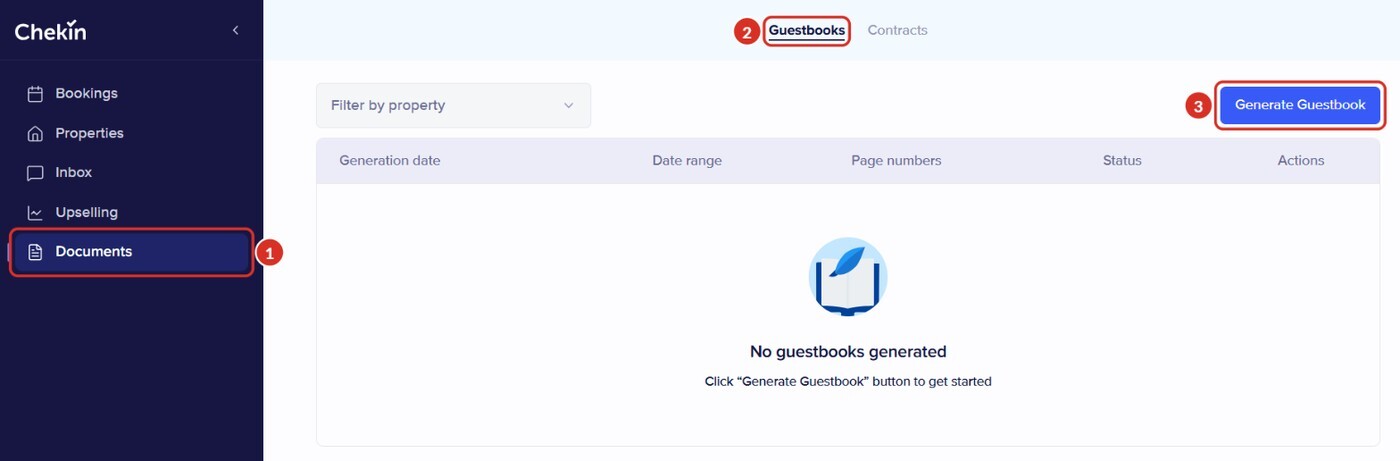
- In the menu, go to Documents 1 and open the Guestbooks tab 2.
- Click Generate guestbook 3. The Guestbook generation window opens.
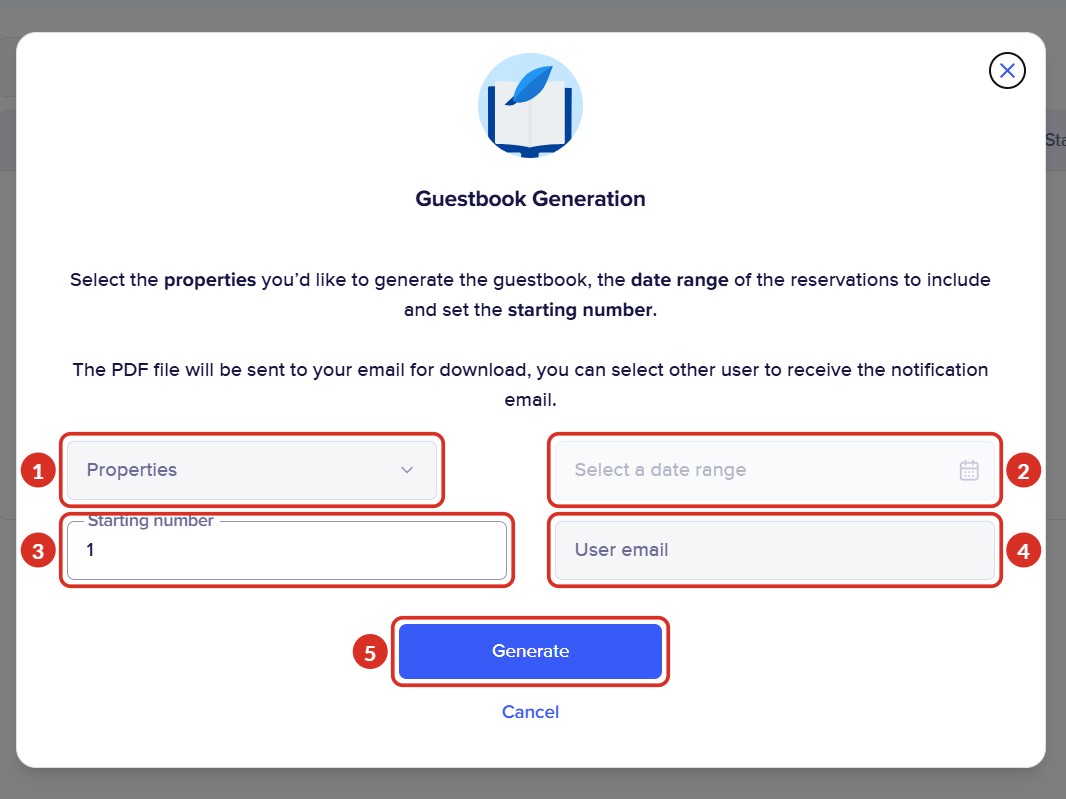
- Fill in the fields:
- 1Properties: one or more properties. Each property has its own guestbook.
- 2Select a date range: a period with registered guests. The dashboard lets you choose one year at most.
- 3Starting number: it is set to 1, which is what you need the first time. If you are continuing a previous guestbook, enter the last page of that guestbook plus 1 (if it ended on page 100, start at 101).
- 4User email: you can choose another user of your account to receive the email.
- 5Click Generate.
- You receive the PDF file by email, so you can download it and keep it.
In the Guestbooks tab you will see each guestbook with its Generation date, Date range, Page numbers and Status. The page numbers tell you where to continue the numbering in the next guestbook.
Download the entry forms for a booking
- Go to Bookings and open the booking (this also works for past bookings).
- Scroll down to Guests & registration 1.
- Click Download all 2 to download the entry forms of the registered guests as a PDF, with their details and signature.
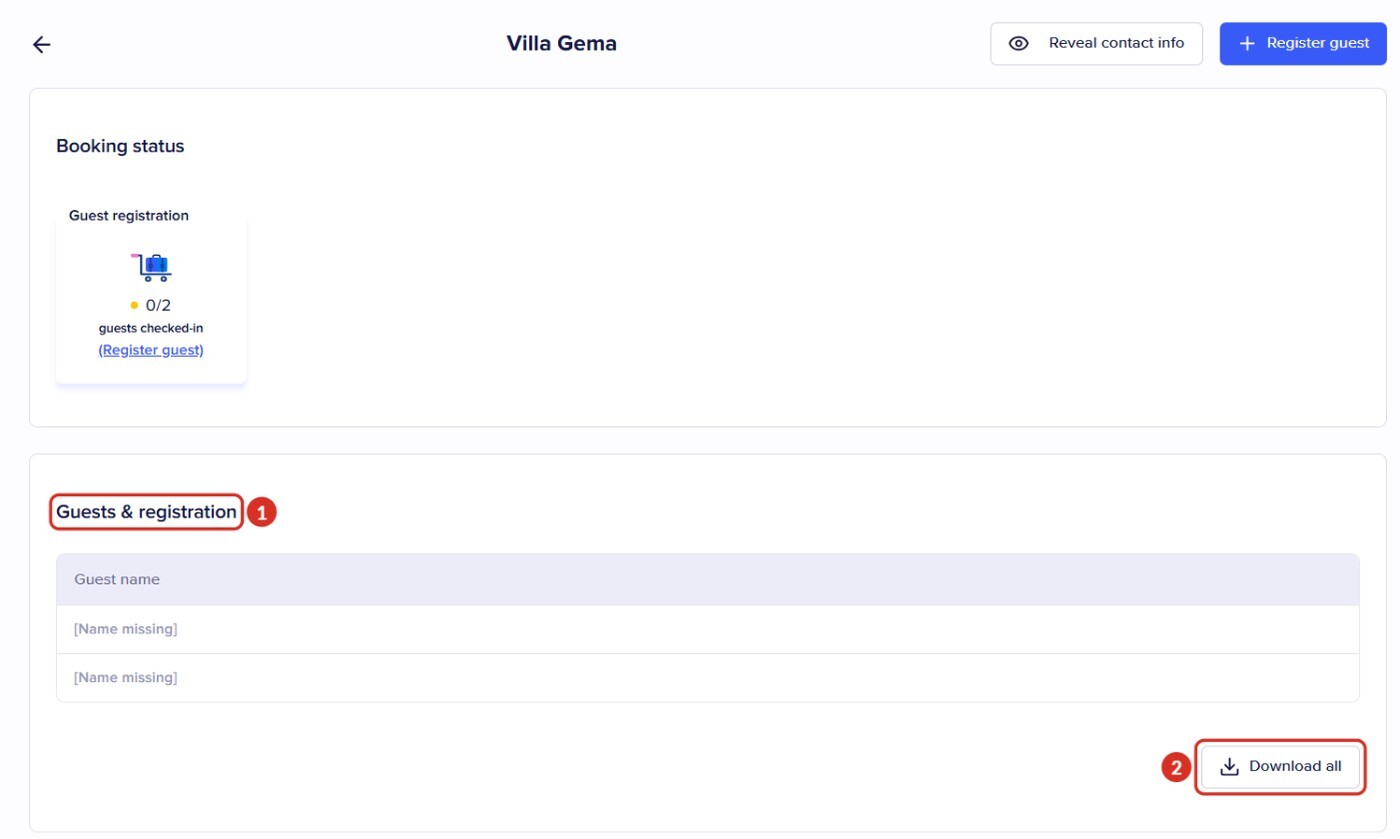
If a guest shows as [Name missing], they have not done the check-in yet and have no entry form.
Authority submission receipts
Only some authorities send back a receipt. When they do, Chekin saves it in Documents, in a tab with the name of the authority. That tab only appears if you have the connection turned on.
| Authority | Does it send a receipt? | Where you see it |
|---|---|---|
| Mossos d'Esquadra (Catalonia) | Yes | Documents > Mossos |
| Alloggiati Web (Italy) | Yes, one per police account and per day with at least one guest | Documents > Alloggiati. Choose your user at the top left |
| UbyPort (Czech Republic) | Yes | Documents > UbyPort |
| SES Hospedajes, Ertzaintza, SEF, Feratel, SIRE, Stadt Zürich and ISTAT | No | Check the submission status in the booking (what each status means) and, if you need to, in the authority's portal. For SES, follow SES Hospedajes: FAQ |
You can find the details for each country in Legal compliance per country.
Guest report and booking report in Excel
- Go to Bookings and click More actions 1.
- Choose Download booking report 2 or Download guest report 3. Each one opens its own page.
- In the booking report: choose the property and the dates (From and To), and tick the fields. Click Download report.
- In the guest report: follow the steps on the page, 1 - Select the property, 2 - Select type of report (for example, By check-in date), 3 - Select the dates and 4 - Add the fields, and download the Excel file. The field names are in English (Full Name, Birth Date, ID Number…).
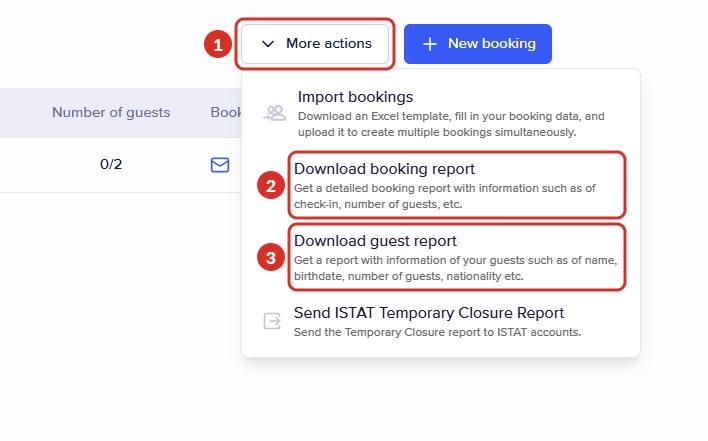
Depending on your connections, you will also see other options in More actions, such as Send ISTAT Temporary Closure Report or the reports for some authorities.
So that the report is generated without errors:
- Choose one year at most per download. If you need more, download one report per year.
- Tick only the fields you need. If you tick them all, the report may not be generated.
- If the signature field appears, untick it: it cannot be exported to Excel.
- Wait until one report is finished before you request another.
Files for authorities without automatic submission
In some regions the authority does not allow automatic submission. Chekin prepares the file and you upload it to their portal:
- Puglia DMS (XML) and Puglia Spot Easy (TXT): from Bookings.
- Umbria Turismatica: the file is saved in Documents.
- Vienna and Graz (VIETour): Bookings > More actions > Download Statistics Report (VIETour).
- VAU annual report (NRUA), in Spain.
- Bulgaria ESTI (CSV).
Before you cancel, delete your account or deactivate a property
- If a property is deactivated, it does not appear when you generate the guestbook or the reports. Activate it, download what you need and deactivate it again.
- When you deactivate a property, the dashboard asks you Keep documents in storage? and shows you the cost. If you choose No, delete documents, they are deleted.
- Keeping these documents for as long as the rules in your country require is the responsibility of the accommodation.
If you see “Error” or it does not download
| What happens | Why | Solution |
|---|---|---|
| The guestbook shows “Error” | There are no registered guests on those dates, or the property has no data for that period | Choose dates with registered guests and one year at most, and generate it again. If it still fails, write to us with the property, the dates and a screenshot |
| The property does not appear when I generate the guestbook | It is deactivated | Activate it, generate the guestbook and deactivate it again |
| I can't choose old dates | The calendar has a minimum date, which depends on the property | Write to us with the property and the period you need |
| Some guests are missing from the guestbook | They did not complete the registration, or they are in another property | Check the bookings without registered guests and generate the guestbook for each property |
| I have two guestbooks that look the same | They were generated with overlapping periods | Keep the one for the period you need |
| It says “Preview is not available” | The preview does not load | Click download to see the guestbook |
| Download all does nothing | It may be a one-off glitch | Reload the page or try in an incognito window. If it still fails, write to us with the booking |
| The Excel report gives a 422 error | The period is longer than one year | Split the download by year |
| “There is already guest report generation task in progress” | Another report is already being generated | Wait a few minutes and try again |
| The Excel report never finishes downloading | Too many fields are ticked | Untick some fields, especially the signature, and try again |
Still have questions? Write to us from the dashboard chat or at support@chekin.com, including the property, the document and the dates.