![imagotype-new-chekin-landscape-2-1.png]](https://support.chekin.com/hs-fs/hubfs/imagotype-new-chekin-landscape-2-1.png?width=100&height=40&name=imagotype-new-chekin-landscape-2-1.png)
To start using Chekin you first have to add your properties.
You have to follow this step only if you are not using any PMS integration available or if your PMS is one of these: Siteminder, Beds24, Booking Automation or Planyo. In case you are using another PMS you can skip this first paragraph :)
Note: if you have an account integrated with a PMS and you want to add another property, you will have to: 1) Add your property in your PMS and 2) Click on the ‘sync’ button in the properties section in Chekin. Synchronisation may take a few hours
To start using Chekin, the first step is to add your properties, as they are required to link all relevant information such as police connections, reservations, documentation, and more.
To add a property, go to “Properties” in the main menu and click on “Add Property” or “Add New Property” to begin the process.
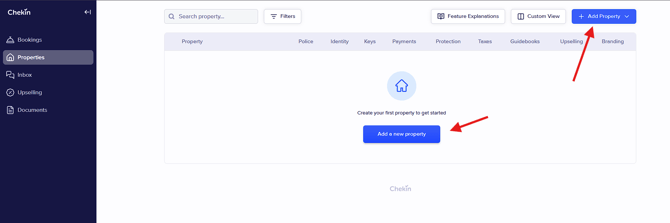
On the “Add Property” page, you will see several sections to complete the information. However, only the Property Information section is mandatory; the rest are optional.
(*) Note: Police and statistics connections availability depends on the country selected.
Property information
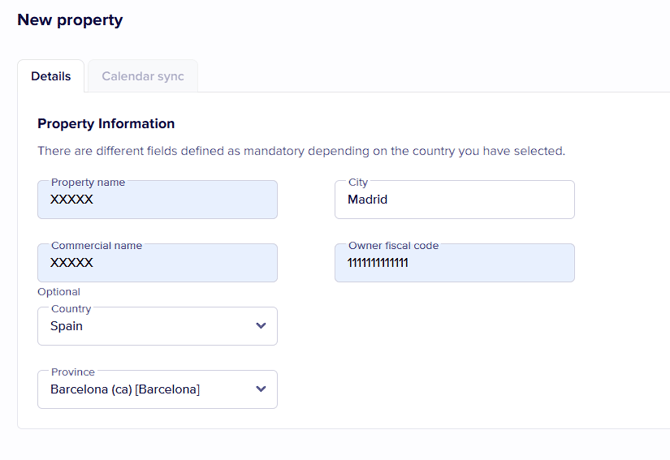
Select the country where your property is located and complete all the required information.
The requirements vary from one country to another, as the property details are used to generate the guest registration form (check-in form), and some countries legally require more information than others.
Police Connection
In this section, you can connect your account credentials with the local authorities if your country or region requires sending guest data to the Police.
You will see the available police connections based on the country where your property is located.
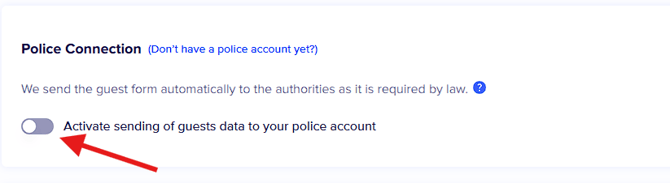
Note: If you do not yet have your credentials, make sure to contact your local authorities as soon as possible to obtain an account.
Add the username, password, and any other required information, then click “Validate” to ensure that the connection is working correctly.
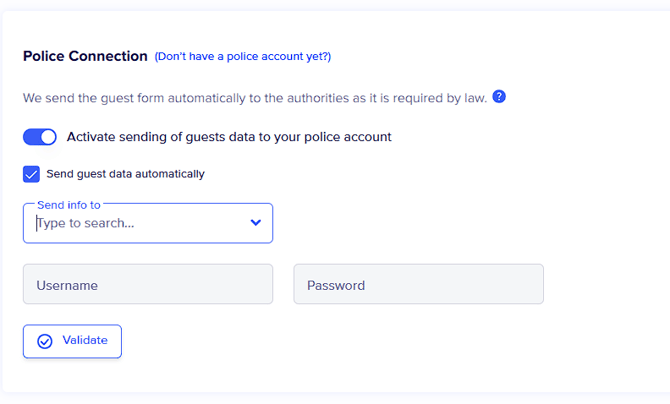
Activating the police connection will automatically send your guests’ data to your police account.
Note: Guest records are sent automatically on the night of the check-in day. You also have the option to send them immediately if needed.
Statistics Connection
Similarly to the police connection, you can connect your statistics account if your country requires you to send data to the National Statistics Institute.
The process is the same: select the statistics institute and enter your username and password to validate the connection.
Activating the statistics connection will automatically send your guests’ data to your account.
Online Check-in
Automatically send an online registration form to your guests. When would you like to contact them? Choose the sending options that best fit your specific needs.

We suggest youto select all the options: we will stop sending the reminders once all the guests of a reservation have completed the online registration.
Contracts
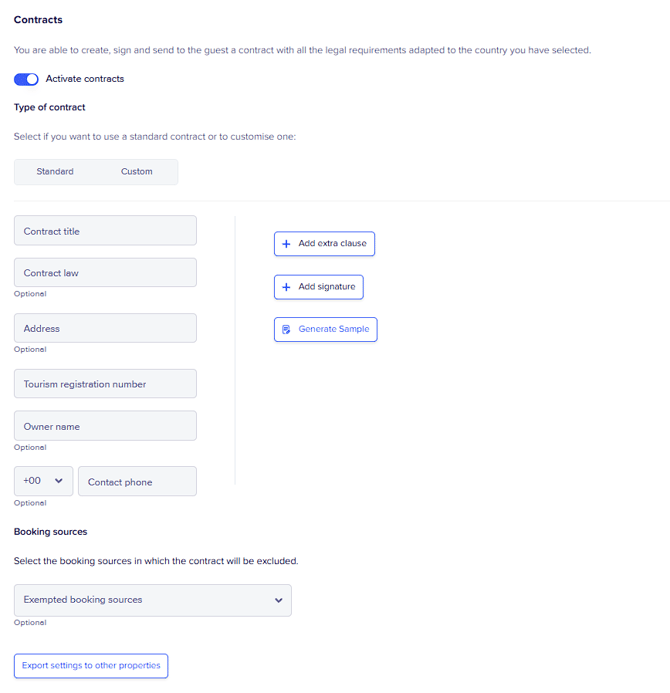
In this section, you can activate the short-term rental agreement so that the main guest signs it during the check-in process. Once activated, the contract will apply to all reservations.
The contract includes information about the legal representative of the property (whether a company or an individual).
iCals Connection
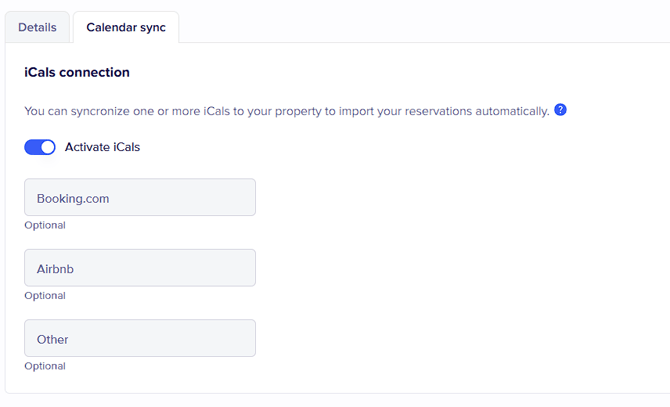
Add the iCal links from your Booking.com and/or Airbnb accounts to automatically create reservations based on the iCal information.
You can also add other iCal links, but please note that not all data may be imported, as each company uses a different iCal format.
Tip: If you use a PMS or a Channel Manager, we recommend using one of our integrations instead.
Once you have completed all the desired information, don’t forget to click SAVE PROPERTY. If everything is correct, you will see a pop-up window with a success message. Otherwise, if any required information is missing, it will be highlighted in red so you can correct it.
Has your question been answered? 😞😐😃