![imagotype-new-chekin-landscape-2-1.png]](https://support.chekin.com/hs-fs/hubfs/imagotype-new-chekin-landscape-2-1.png?width=100&height=40&name=imagotype-new-chekin-landscape-2-1.png)
Introduction
If Tokeet is your main Property Management System (PMS), you can connect your account with Chekin to automatically import all your properties and reservations allowing you to manage everything in a simple and reliable way. This integration helps you automate key check-in processes and reduce manual tasks.
This quick guide will help you connect your Tokeet account to Chekin and configure the essential settings.
🔎 Prerequisites
- Have an active Tokeet account.
- Have an AdvanceCM account
➡️ Steps to connect
STEP 1:
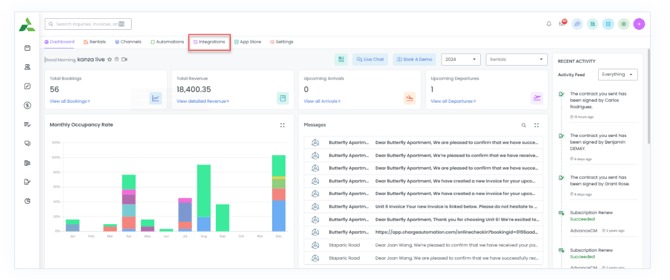
In AdvanceCM, you can connect with Chekin and sync your data from AdvanceCM to Chekin. Click on top menu and choose Integrations option and it will take you to integrations screen.
STEP 2:
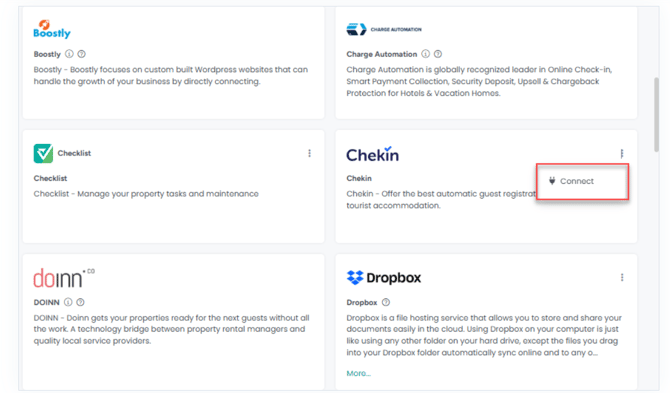
Locate Chekin logo and click on Connect button
STEP 3:
Now choose Account Type and click the Connect button.
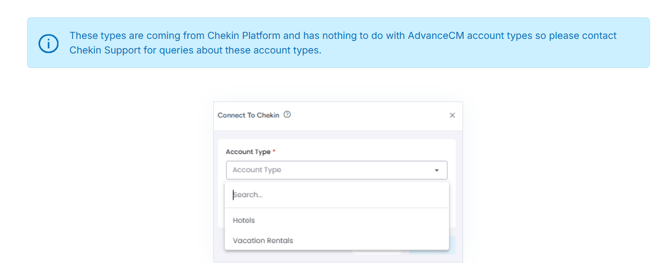

Once you click the Connect button, your connection will become successful between AdvanceCM and Chekin and below actions will be performed.
-
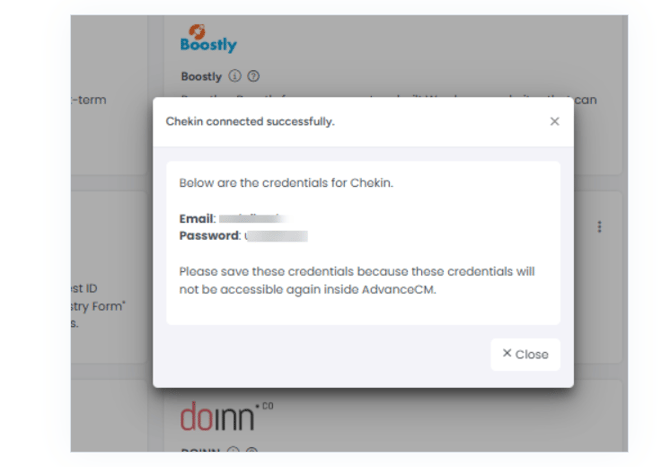
Your Chekin Account will be created and Credentials will be visible on frontend inside AdvanceCM for one time only.
-
You can login into Chekin with these credentials only. You can change the password inside Chekin Platform for security purposes

How to see data is synced inside Chekin?
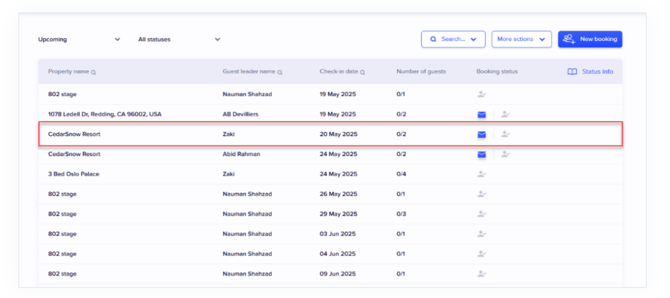
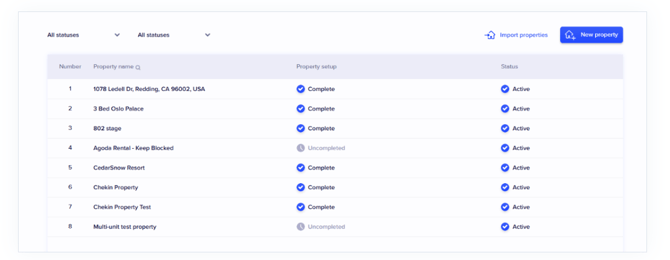
Go to Chekin interface and you can see Bookings and Rentals information is synced from AdvanceCM to Chekin platform.

Bookings/Reservations:
Properties:
How to activate properties in AdvanceCM to appear in Chekin?
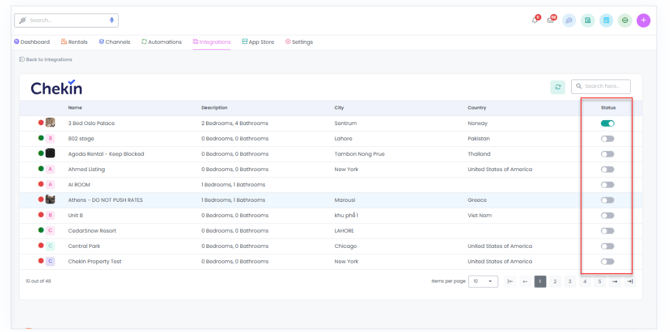
Go to AdvanceCM-> Integrations Screen -> Choose Chekin's "Configure" button
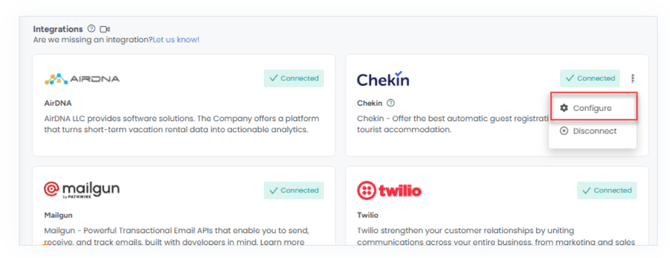
Click on the Configure button and it will open Listings page, Now choose rentals which you want to sync to Chekin and enable the toggle "Status"

Which data is synced from AdvanceCM to Chekin?
-
Bookings
-
Rentals

Which data is synced from Chekin to AdvanceCM?
Online Checkin URL per reservation is synced from Chekin to AdvanceCM and it is unique for each guest and each booking.
You can find Online Checkin URL in Chekin Platform and you can access same inside AdvanceCM using Data Dictionary as mentioned in below screenshot
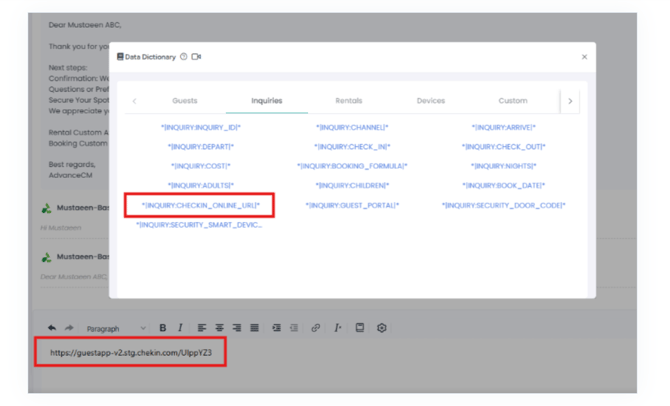
You can put this data dictionary token inside AdvanceCM templates and can use with AdvanceCM Automations.
How to disconnect Chekin integration in AdvanceCM?
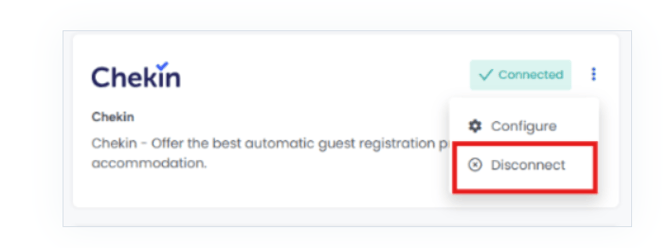
You can disconnect with Chekin and stop sync your data from AdvanceCM to Chekin. Click on top menu and choose Integrations option and it will take you to integrations screen. Locate Chekin logo and click on Disconnect button. It will disconnect the integration successfully.