![imagotype-new-chekin-landscape-2-1.png]](https://support.chekin.com/hs-fs/hubfs/imagotype-new-chekin-landscape-2-1.png?width=100&height=40&name=imagotype-new-chekin-landscape-2-1.png)
IMPORTANT: In order to connect to Chekin, you will need to contact Padword, requesting the username and password for the API connection to Chekin.
Include the Reference ID in the email message. You can find it in the pop up for adding your Padword credentials on the Chekin dashboard.
Reference ID format example: Chekin_chekintest@test.com62023071
1. Go to "properties" in your dashboard

2. Select your property

3. Go to "Remote Access" tab and activate it

4. Click "Upgrade to premium" or "Activate in this property"

5. Click "Add lock account" and then "Smart Lock"

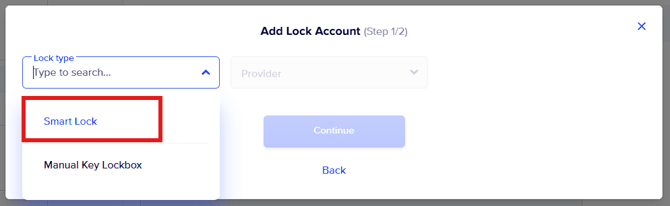
6. Add Padword as your Provider

7. Add your credentials, then click on "continue"
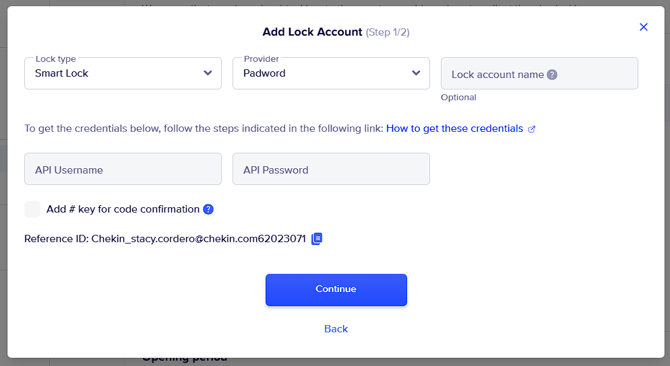
Note: To obtein this credentials you only need to log in in your Padword Account.
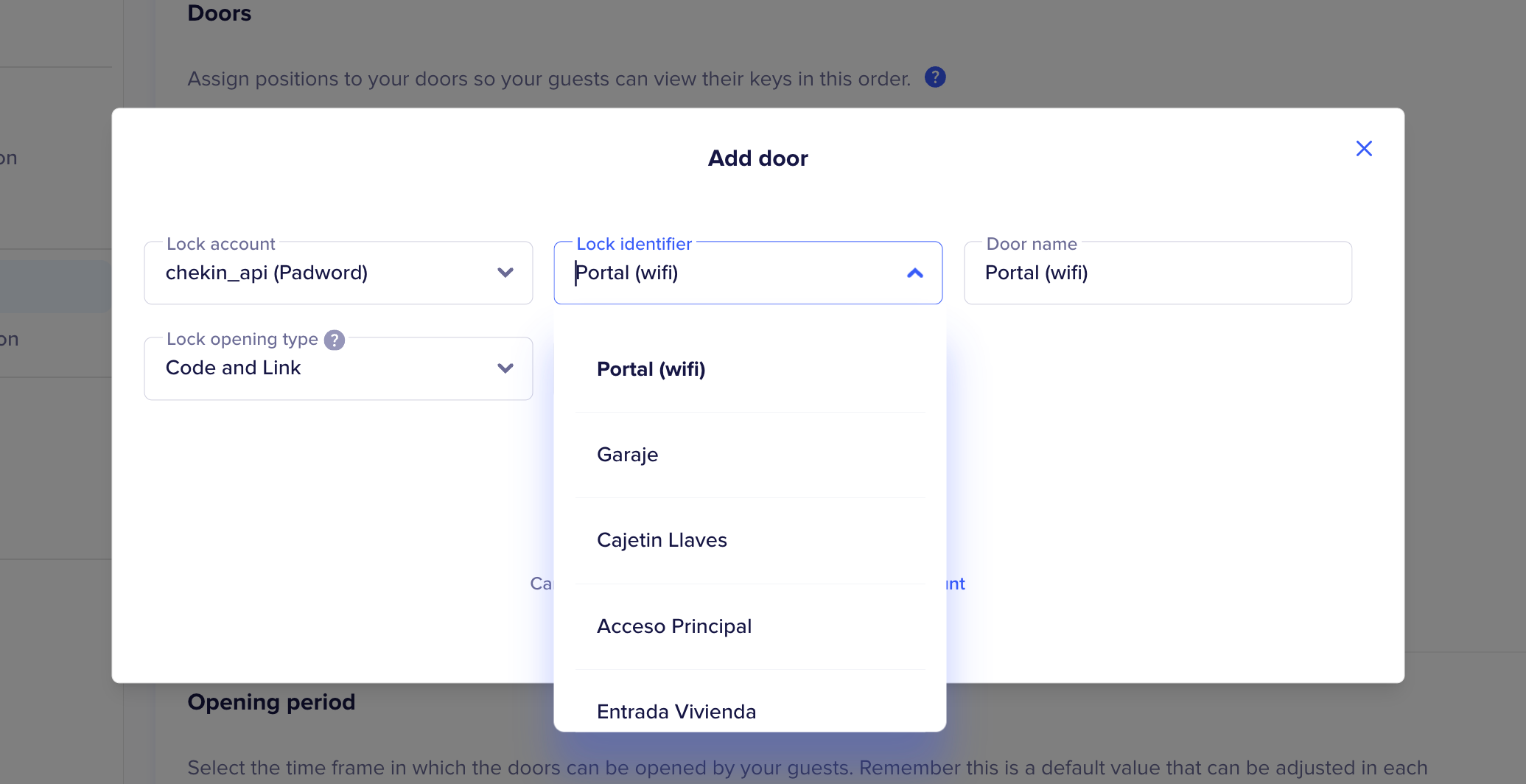
8. Add a Door

Select:
- Lock account: the newly connected account
- Lock identifier: here you select the Lock/Device/Door corresponding to the vendor
- Door name: internal name visible to the user
8. Add an opening period
You can decide when your keys will be working for your guests, configuring check-in/checkout opening hours.

9. Choose your key sharing conditions
Among the different sending options you can program the one you prefer to send the keys to your guests,
-
You can decide to send an email or not, and the time you want to send it.
-
You can show your keys with your guests in the guestapp.
-
You can select which condition has to be met to share the keys, the most recommended would be "all guests have been registered".
You can decide to send an email or not, and the time you want to send it.
You can show your keys with your guests in the guestapp.
You can select which condition has to be met to share the keys, the most recommended would be "all guests have been registered".

10. Keys generation
This tool also allow you to decide when you want the codes to be generated. We recomend to add maximum 7 days before the check in date.
