![imagotype-new-chekin-landscape-2-1.png]](https://support.chekin.com/hs-fs/hubfs/imagotype-new-chekin-landscape-2-1.png?width=100&height=40&name=imagotype-new-chekin-landscape-2-1.png)
Chekin can send each guest a rental contract during online check-in, which they sign digitally. You can use Chekin's standard contract, already adapted to your property's country, or create your own custom contract with your clauses and automatic booking and guest data.
This article covers:
- Creating a custom contract template
- Turning on contracts for a property and assigning your template
- Finding signed contracts
Before you start
- You need access to Account Settings in the Chekin dashboard.
- Have your contract text ready (for example, in a Word doc or HTML cod) so you can paste it in.
Activating contracts
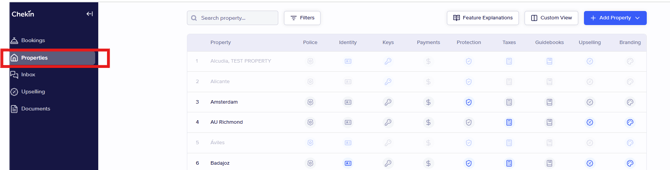
Step 1: You must first log in to your Chekin account from the web platform and navigate to ´Properties´. Select the property you would like to activate Contracts on.
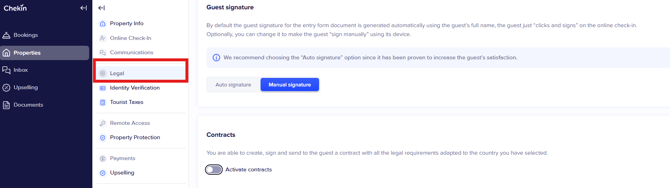
Step 2: Navigate to ´Legal´
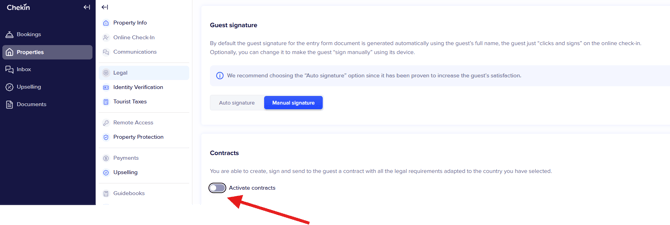
Step 3: Scroll down to ´Contracts´ and activate the toggle.
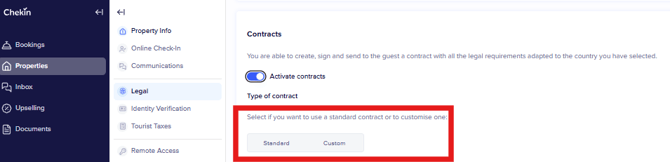
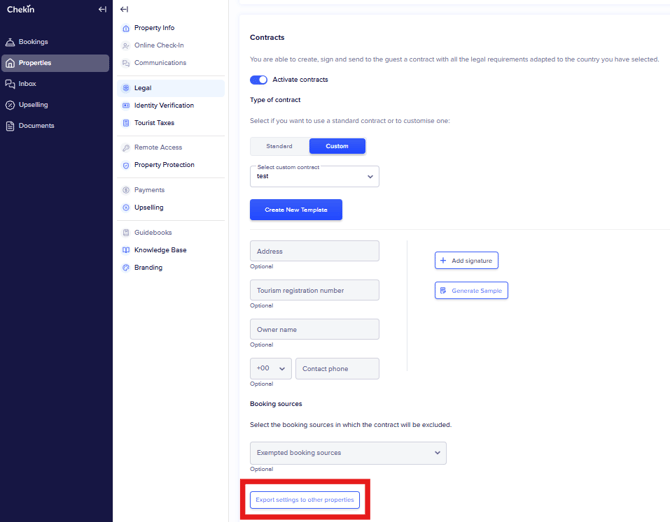
Step 4: You can choose Standard or Custom
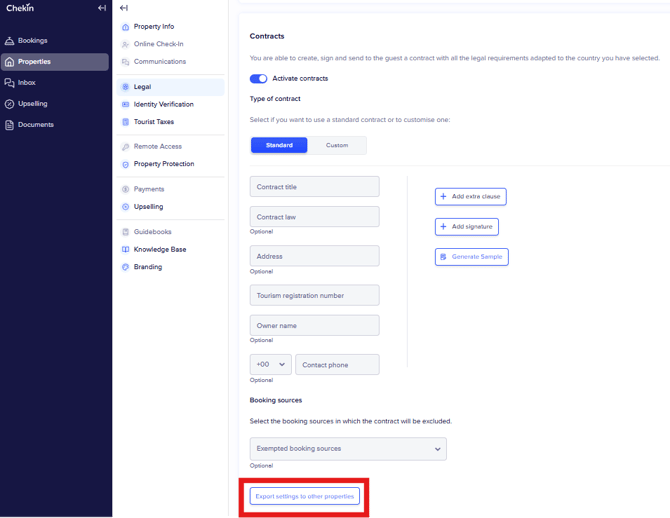
Step 5: If you choose Standard you will need to fill out this form:
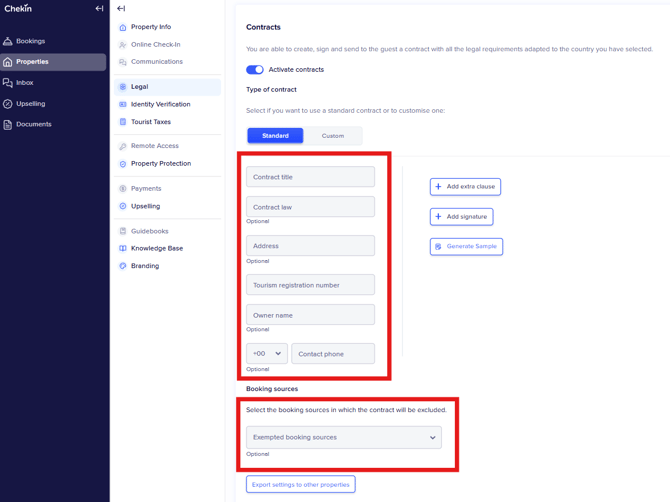
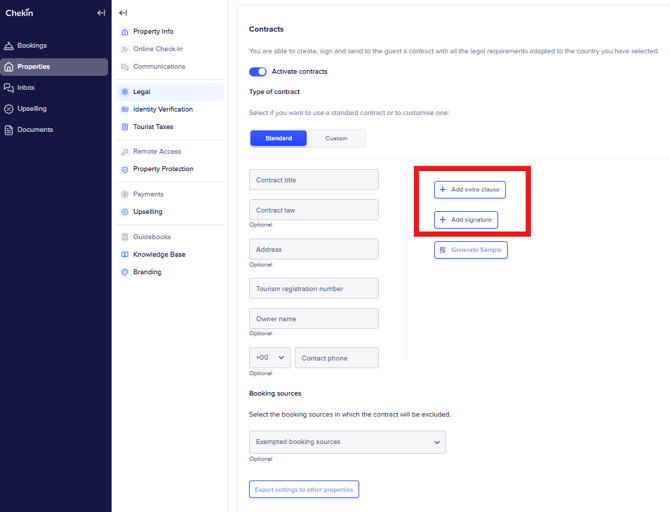
Step 6: If you choose Standard, you can also choose to add an extra clause (For example, rules of behaviour, entry rules, exit rules, etc.) or your signature here:
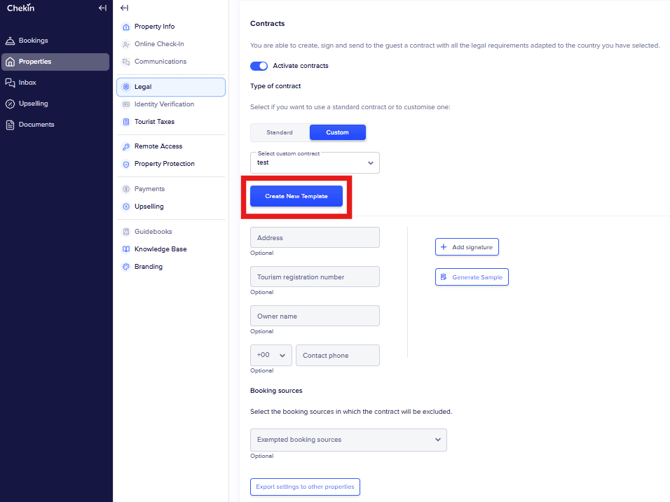
Step 7: If you choose Custom, you need to click on Configuration-contracts-Create New Template, it will bring you to Settings where you will need to create the template.
Enter the contract details
Fill in the fields under 1. Enter contract details:
|
Field |
What to enter |
Example |
|---|---|---|
|
Template name |
Internal name, only you see it. Use a clear name if you'll have several templates. |
Rental Agreement – Spain |
|
Contract title |
The title guests see at the top of the contract. |
Short-Term Rental Agreement |
|
Country |
The country the contract applies to. The variables list only appears after you choose a country. |
Spain |
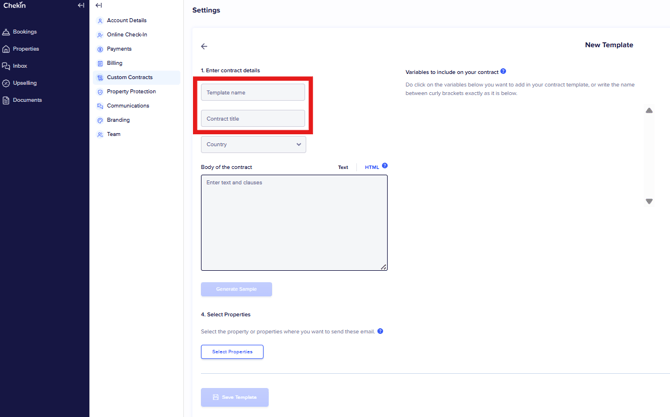
Step 8: Once in settings you will need to give the template a name under the field ´Template name´ (this name is for your reference so that in Step 14 you can choose the template you wish) and set a ´Contract title´ (your guests will see this title on the contract).
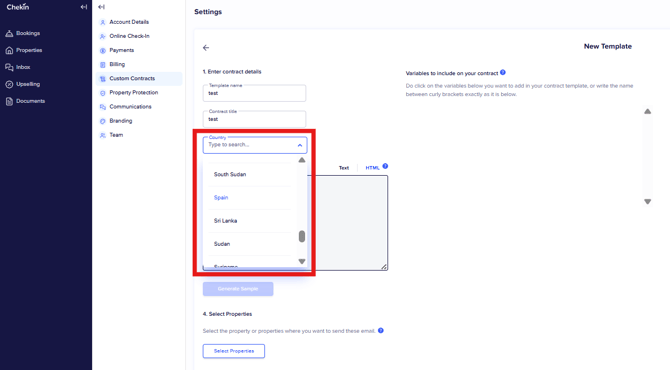
Step 9a: You will need to select the country where your property is located and then the variables will appear in the box on the right.
Step 9b: The variables will now appear:
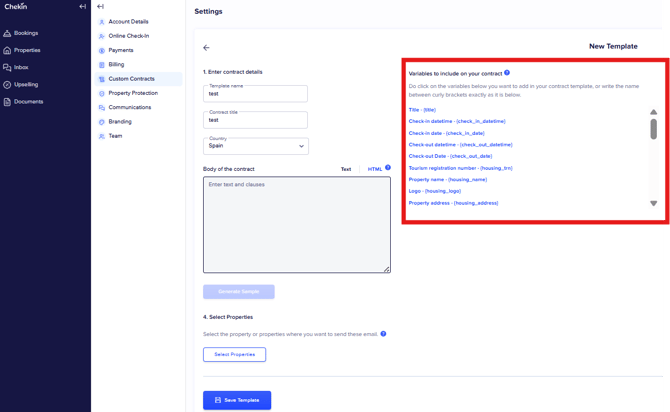
Variables are placeholders that Chekin replaces with the real booking, guest and property details when it generates each contract. For example, {leader_name} becomes the guest's first name.
To add a variable, either:
- click it in the Variables to include on your contract column on the right, or
- type it in the text between curly brackets, spelled exactly as it appears in the list, for example {check_in_date}.
*Available variables will depend on the Country selected
Example contract body
This agreement is made between {manager_name}, manager of {housing_name}
({housing_address}, {housing_city}, tourism registration no. {housing_trn}),
and {leader_name} {leader_surname}, holder of {leader_doc_type} no. {leader_doc_number}.
Stay: from {check_in_date} to {check_out_date} for {number_of_guests} guests.
Booking reference: {booking_reference}.
Total price: {price}. Security deposit: {deposit_amount}.
The guest agrees to respect the house rules and to leave the property
in the same condition as on arrival.
Guest signature: {leader_signature}
Manager signature: {manager_signature}
Step 10: You can add a variable to the Body of the contract by clicking on it from the Variables list on the right:
In Body of the contract, type or paste your contract text and clauses.
You can write it in two formats. Switch between them at the top right of the box:
- Text – plain text. The easiest option for most users.
- HTML – for custom formatting (bold, headings, tables, and so on). If you use HTML, remember to add the variables from the right-hand column to your HTML code as well.
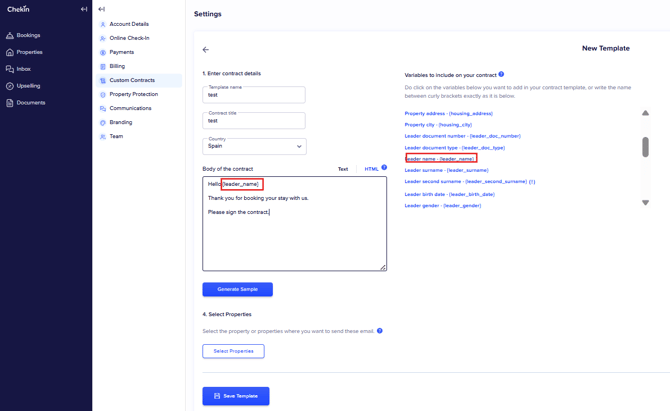
Step 11a: Once you finish writing the body of the contract, you will need to select the properties that you would like to apply the contract to:
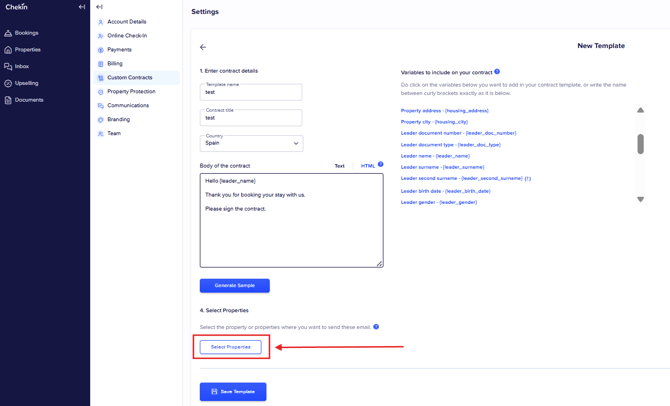
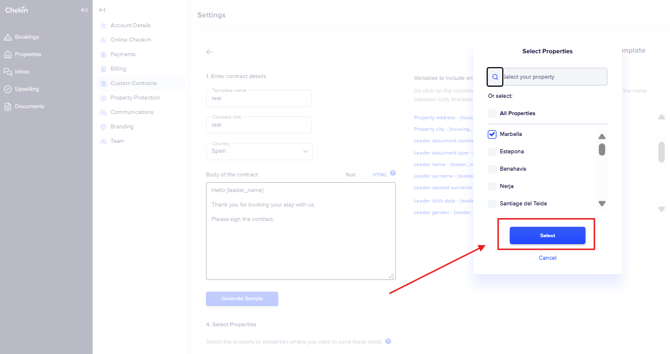
Step 11b: Tick the properties you would like to apply the contract to:
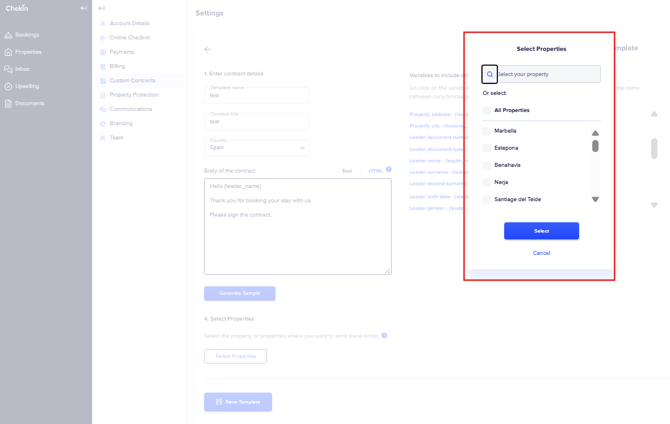
Step 12: Click ´Select´:
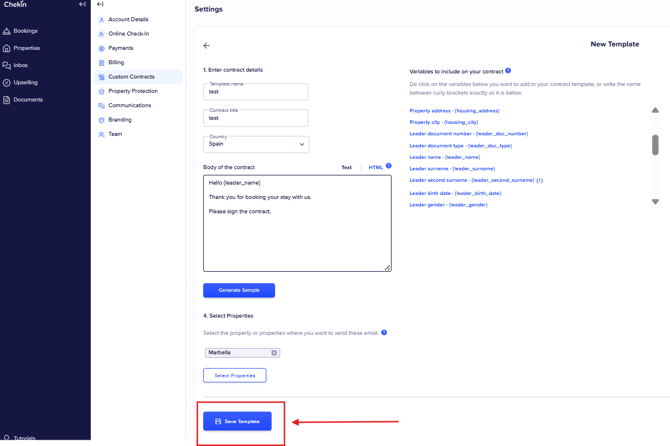
Step 13: Once you finish creating the template, make sure to save it at the bottom of the page:
Step 14: Once you finish creating the template in Settings, go back to Legal>Contracts and choose it from the dropdown menu.
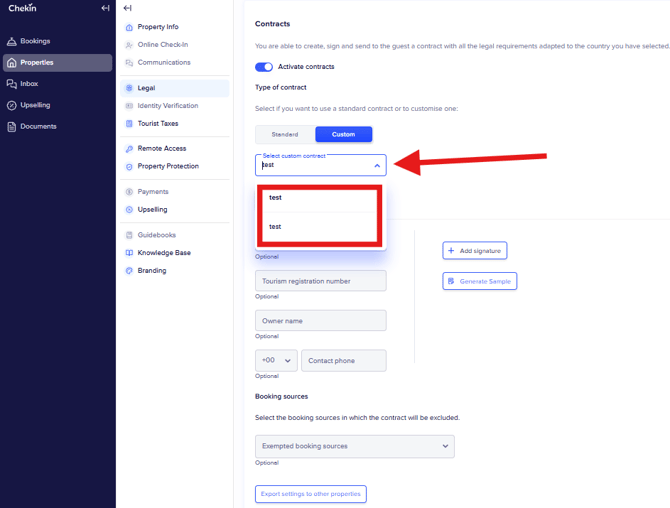
Step 15: If you wish, you may use the same contract settings in different properties. You can do this by clicking on the button "export settings to other properties" and selecting the property you want to copy it to.
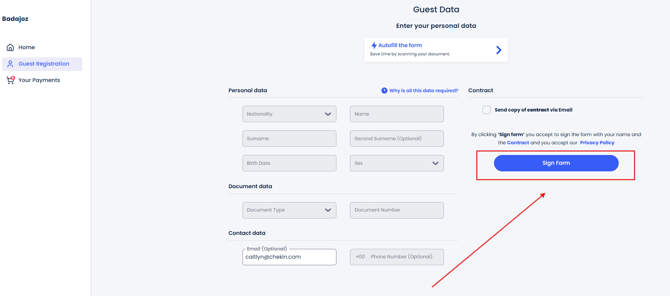
Note: Once the tool is activated, it will be automatically signed by your guests when they click ´sign form´
Note: The guest can request a copy of the signed contract be sent to their email by clicking the ´send copy of contract via Email´ option. They will not be able to see a signed version until they click that box and then the ´sign form´ box.
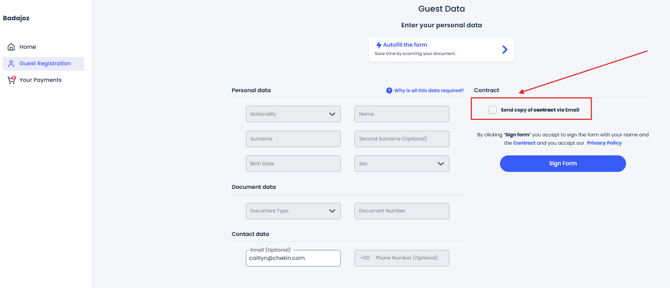
If a guest would like to view the unsigned contract before they sign the form they can do so here:
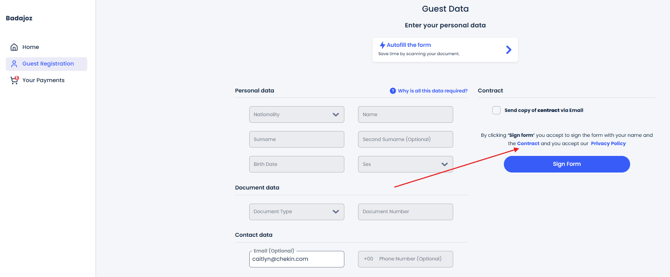
Note: Once signed, the contract will appear in the documents tab in the "contracts" section.

FAQs
The variables list is empty. Why? Select a Country first. The variables load once a country is chosen.
My property doesn't appear in "Select Properties". Contracts aren't turned on for that property yet. Go to Properties › [your property] › Legal › Contracts and switch on Activate contracts (Part 2).
A field shows up empty in the signed contract. You probably used an optional variable (marked (!)), such as second surname, email or phone, and the guest didn't fill it in. Replace it with a mandatory field or rephrase the clause.
Can I have different contracts for different properties? Yes. Create one template per contract and assign each one to the right properties.
Can I skip the contract for some bookings? Yes. In the property's Contracts settings, add those channels under Booking sources › Exempted booking sources.
I typed a variable and it isn't replaced. Check the spelling and the curly brackets. The variable must match the list exactly, for example {check_in_date}, not {Check-in date} or [check_in_date].
Need help? Contact our support team from the chat in your dashboard.
Did this answer your question?😞😐😃